
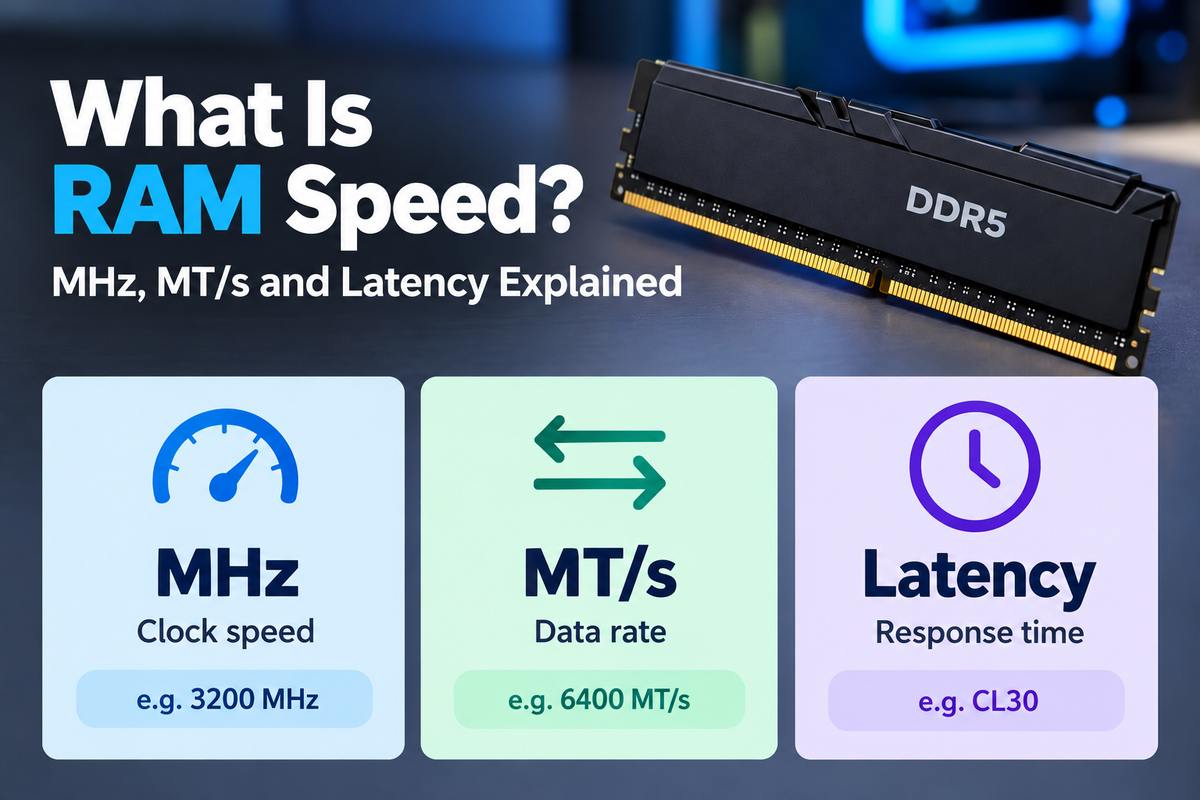
RAM speed is one of those specs everyone sees and almost nobody reads it properly. There’s a big number on the box, maybe 6000. There’s a smaller number next to it, CL30 or CL36. And then Windows tells you something completely different once the sticks are installed.
I’ve been building and upgrading PCs for a long time now, and I still think RAM is the most confusingly labeled part in the whole machine. So let’s fix that. This guide covers what is RAM speed, what MT/s actually means, and how CAS latency fits in. I’ll also compare DDR3, DDR4, and DDR5 and show you how to check what your own sticks are running at.
What Is RAM Speed, in Plain Terms?
RAM speed is how fast your memory can move data to and from your CPU. That’s it. Higher number, more data per second. The speed of a RAM kit is printed right on the label, usually as something like DDR5-6000.
Here’s the thing: your processor is ridiculously fast, and it constantly waits on memory. Every texture, every bit of game logic, every open Chrome tab passes through RAM first. The speed of RAM decides how quickly that data shows up when the CPU asks for it.
But speed is only half the story. The other half is latency, which is how long the CPU waits before the data starts arriving. People mix up RAM and speed with capacity all the time too, which is a separate thing entirely. Capacity is how much you can hold. Speed is how fast you can move it.
If you’re still deciding on the capacity side, I’ve covered how much RAM you need for gaming separately. This article is purely about speed.
In a nutshell, good RAM memory speed means three things working together:
- Transfer rate. How many data transfers happen per second, measured in MT/s.
- Latency. How many clock cycles the RAM needs before responding, shown as CL.
- Channels. Whether you’re running one stick or a matched pair, which doubles the data path.
MT/s Meaning and Why Your PC Shows MHz Instead
This is where most of the confusion starts. So, the MT/s meaning first: it stands for megatransfers per second. DDR5-6000 can do 6,000 million transfers every second.
Now, the “DDR” part. It means double data rate. The memory moves data twice per clock cycle, once on the rising edge and once on the falling edge of the signal. So the actual clock runs at half the advertised number.
That’s why a DDR5-6000 kit gets sold as “6000 MHz” on Amazon, while CPU-Z reports a DRAM frequency of roughly 3000 MHz. Nothing is broken. You’re just looking at two different measurements of the same thing.
Sure, retailers still slap “MHz” on everything. But technically, MT/s is the correct unit for the big number on the box, and MHz describes the real clock underneath. I wish the industry would just pick one. It won’t.
Converting 4800 MT/s to MHz
The math is simple. Divide by two.
- 4800 MT/s to MHz is 2400 MHz.
- 5600 MT/s is 2800 MHz.
- 6000 MT/s is 3000 MHz.
- 6400 MT/s is 3200 MHz.
That also explains why some apps show your memory at half its rated speed and cause a mini panic. If the halved number matches your kit, everything is fine. If it’s lower than half, that’s a different problem, and I’ll get to it in the section on checking your RAM.
What Is CAS Latency?
So what is CAS latency? CAS stands for Column Address Strobe. The number tells you how many clock cycles pass between the CPU asking for data and the RAM starting to deliver it.
Lower is better. CL30 responds faster than CL36 at the same speed.
But, and this is the part that trips people up, CL is counted in clock cycles, not in time. A faster kit has shorter cycles. So a high CL on fast RAM can end up just as quick as a low CL on slow RAM. Comparing CL numbers across different speeds tells you basically nothing on its own.
Using a RAM Latency Calculator
You don’t really need an online RAM latency calculator. The formula fits on a sticky note:
True latency (ns) = CL × 2000 ÷ speed in MT/s
To illustrate, here’s how a few common kits work out:
|
Kit |
CAS Latency |
True Latency |
|
DDR4-3200 |
CL16 |
10 ns |
|
DDR4-3600 |
CL18 |
10 ns |
|
DDR5-4800 |
CL40 |
16.7 ns |
|
DDR5-6000 |
CL30 |
10 ns |
|
DDR5-6000 |
CL36 |
12 ns |
|
DDR5-7600 |
CL38 |
10 ns |
Notice something? A good DDR4 kit and a good DDR5 kit land at the same 10 ns. DDR5 wins on bandwidth, not on response time. That cheap DDR5-4800 CL40 kit, though, is noticeably slower to respond than most decent DDR4.
What Is Memory Latency, Really?
What is memory latency beyond CAS? It’s the full round trip. CAS is only one of several, and the memory controller, the CPU’s fabric and the cache all add their own delays.
Real-world latency measured in tools like AIDA64 usually sits somewhere between 60 and 90 ns on modern desktops. CAS covers only a slice of that, which is why tightening CL alone rarely transforms anything.
DDR5 RAM Speed: Theoretical vs Real-World Bandwidth
Every DDR5 spec sheet quotes a theoretical number. It’s easy to calculate: multiply the transfer rate by 8 bytes per channel.
- DDR5-4800 gives 38.4 GB/s per channel.
- DDR5-6000 gives 48 GB/s per channel.
- DDR5-6400 gives 51.2 GB/s per channel.
Run two sticks in dual channel and you double it. So a DDR5-6000 pair has a theoretical ceiling of 96 GB/s.
Real-world read and write performance never hits that ceiling. Benchmark results I’ve seen for DDR5-6000 builds usually show read throughput somewhere in the 60s to high 70s GB/s. Write speeds can be lower, and on single-CCD Ryzen chips they sometimes come in at roughly half the read figure because of how AMD’s fabric handles writes.
That’s normal. Overhead from refresh cycles, timing gaps and the memory controller eats into the theoretical maximum on every platform. There’s no denying that the gap looks big on paper. But it’s the same gap for everyone, so it doesn’t change which kit is faster.
My honest take? Bandwidth numbers matter for video editing, compression and some AI workloads. For gaming, real-world bandwidth past DDR5-6000 shows diminishing returns pretty quickly. Games care more about latency and about having enough RAM in the first place.
DDR3, DDR4, and DDR5 Speeds Compared
Each generation roughly doubled the speed ceiling of the one before it. Old DDR3 RAM speeds look tiny next to what’s normal today. Here’s how the official JEDEC ranges stack up, which is what the memory runs at without any overclocking profile:
|
Generation |
Standard Speeds |
Typical Gaming Kits |
|
DDR3 |
800 to 2133 MT/s |
1600 to 1866 MT/s |
|
DDR4 |
1600 to 3200 MT/s |
3200 to 3600 MT/s |
|
DDR5 |
4800 to 8800 MT/s |
6000 to 6400 MT/s |
DDR3 RAM speed feels ancient now. Most DDR3 systems ran at 1333 or 1600 MT/s, and a 1866 kit was considered fast back then. If you’re still on DDR3 speeds, honestly, the RAM is the least of your worries. The whole platform is due.
DDR4 Speed and DDR4 Max Speed
DDR4 speed officially tops out at 3200 MT/s under JEDEC. But that isn’t the DDR4 max speed you’ll actually see on shelves. Enthusiast kits with XMP profiles went well past 4000 MT/s, and a few binned kits pushed beyond 5000.
For gaming, though, DDR4-3600 CL16 or CL18 was always the sensible pick. Especially on Ryzen 5000, where anything past about 3600 to 3800 knocked the fabric out of its 1:1 sync.
I compared the two generations in detail in my DDR5 vs DDR4 breakdown, so I won’t repeat all of it here.
Will DDR4 Work in DDR5 Slots?
No. Short answer, and the long answer is also no.
The notch on the bottom of the stick sits in a different spot, so a DDR4 module physically won’t go into a DDR5 slot. The voltages and power design are different too. Your motherboard supports one type only. Some Intel boards came in a DDR4 version and a DDR5 version, but never with both slot types on the same board.
How to Find RAM Speed on Your PC
This is the part people actually search for, so let’s keep it practical. Here’s how to find RAM speed on Windows without installing anything.
Task Manager
How do I find out my RAM speed in under ten seconds? Press Ctrl + Shift + Esc, open the Performance tab, then click Memory. The “Speed” figure sits in the bottom-right corner. There’s a step-by-step walkthrough with screenshots if you get lost in the newer Windows 11 layout.
My own laptop shows 5600 MT/s there, which matches what the spec sheet promised. Good. That’s what you want to see.
CPU-Z
How do I find my RAM speed in more detail? CPU-Z is free and shows everything. The Memory tab lists your DRAM frequency, which will be half your rated speed, plus the CL and the other timings. The SPD tab shows what each stick is rated for.
Command Prompt
If you prefer typing, open PowerShell and run:
Get-CimInstance Win32_PhysicalMemory | Select-Object Manufacturer, Speed, ConfiguredClockSpeed
“Speed” is what the stick supports. “ConfiguredClockSpeed” is what it’s actually running at right now.
What If It’s Lower Than Expected?
So how do I find the speed of my RAM and confirm it’s right? Compare the number you see with the number on the box. If you bought a DDR5-6000 kit and Task Manager says 4800, your XMP or EXPO profile is switched off in the BIOS.
That’s the default, by the way. Motherboards boot at safe JEDEC speeds until you tell them otherwise. Enabling the profile takes about thirty seconds, and I go through that along with other settings in my gaming PC optimization guide.
Is Memory the Same as RAM?
Mostly, yes. When someone says “my PC has 32GB of memory,” they mean RAM. That’s how the word gets used almost everywhere now.
But memory is a broader term, technically. CPU cache is memory. The VRAM on your graphics card is memory. Storage is not memory, although plenty of people call their SSD “memory” anyway, which honestly just adds to the confusion.
So is memory the same as RAM? In everyday PC talk, yes. In a spec sheet, check which kind they mean.
What’s the Fastest RAM You Can Buy?
The fastest RAM on retail shelves right now is DDR5 rated at 8000 MT/s and up. Some newer CUDIMM kits, which have a clock driver built onto the stick, go even higher on supported Intel boards. Extreme overclockers with liquid nitrogen have pushed past 12,000 MT/s, but that’s a sport, not a build plan.
Here’s my problem with chasing the fastest number. High speed memory only pays off if your CPU can actually use it.
On AMD Ryzen 7000 and 9000 chips, the memory controller runs in sync with the RAM up to around DDR5-6000, sometimes 6400. Past that, it usually drops to a 1:2 ratio, and you lose most of the gain to extra latency. That’s a big reason DDR5-6000 CL30 became the default recommendation for Ryzen builds. If you’re picking a chip to go with it, my list of the best AMD CPU for gaming options covers every budget.
Intel’s Core Ultra 200 series handles 8000-plus kits better. Even there, though, the gaming gains over a good 6000 kit tend to be small. A few frames here and there. Not nothing, but not worth double the money either.
The RAM Speed I’d Actually Buy Right Now
I’ll be blunt. If you can hold off on a RAM purchase right now, I would.
DDR5 prices have gone completely sideways this year. AI data centers are swallowing most of the world’s DRAM production, and a 32GB DDR5 kit that cost around $100 in late 2025 was selling for over $400 by August 2026. Memory makers have reportedly sold out their 2027 production already, mostly to AI customers, so I’m not expecting a fast recovery.
That said, if you’re building now and can’t wait, here’s how I’d think about it:
- AMD Ryzen 7000 or 9000. DDR5-6000 CL30. Don’t pay extra for anything faster, the CPU can’t use it properly anyway.
- Intel Core Ultra 200. DDR5-6000 to 6400 is plenty for gaming. Go faster only if you do heavy creative work.
- Older DDR4 platforms. DDR4-3200 CL16 or 3600 CL18. Don’t upgrade the platform just for RAM speed. Not at these prices.
And if your current RAM works and runs at its rated speed, I’d leave it alone for now. Spend the money on the GPU or just keep it, which is probably the smarter move this year.
Final Thoughts
RAM speed sounds complicated, but it boils down to two numbers. MT/s tells you how much data moves. CAS latency tells you how quickly it starts. Run them through that simple formula and most of the marketing noise disappears.
Where this goes next is interesting, actually. CUDIMM kits are pushing speeds up faster than any previous generation, and DDR6 is already on the roadmap. But the next couple of years might be less about faster memory and more about whether regular gamers can afford it at all. I’ll keep an eye on prices and update this when things shift.