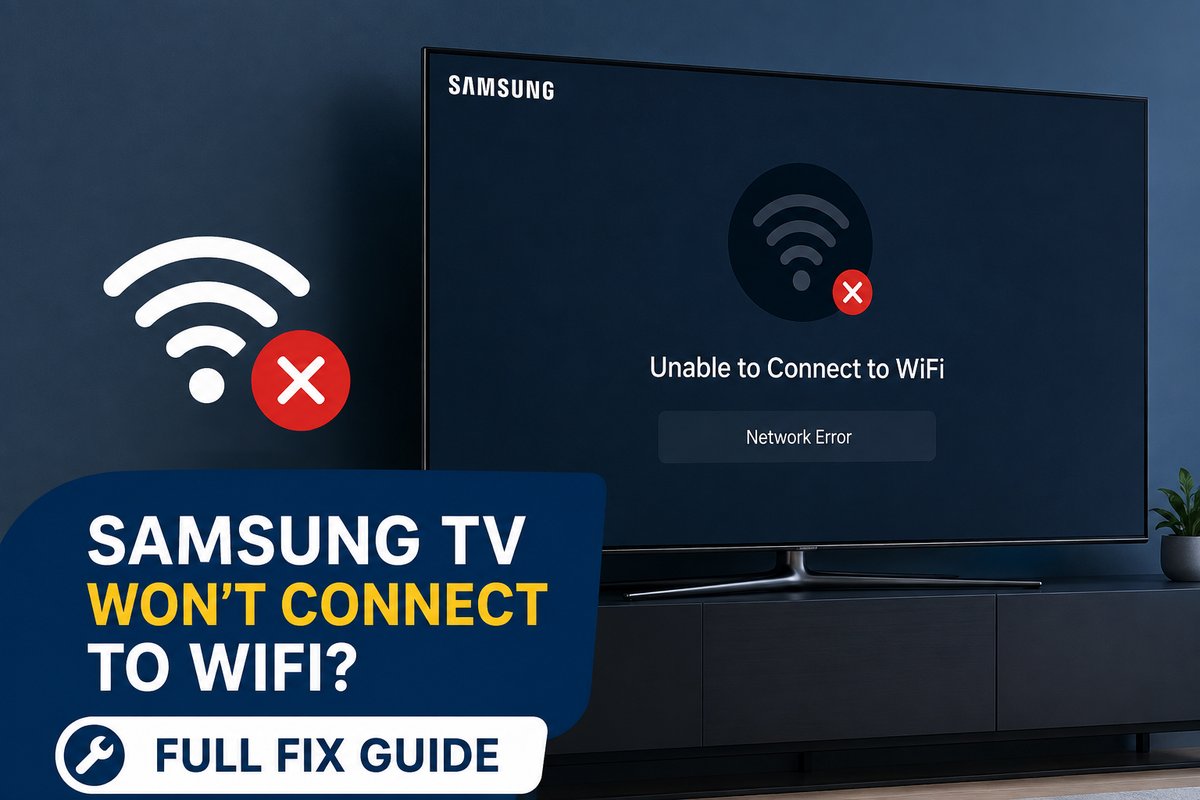

Samsung makes some of the best TV panels out there, genuinely gorgeous screens. But Tizen carries its own baggage when it comes to networking. A Samsung TV that just decides one day it’s done with WiFi is incredibly common. It’s probably the top complaint owners bring up. The odd part is usually everything else in the house connects just fine. Your phone’s online, your laptop’s online, and the TV just sits there acting like WiFi doesn’t exist.
Let’s get you connected first, then work through why this happens and what actually fixes it when the basics don’t. If it’s a different TV brand giving you trouble, our general guide to connecting a TV to WiFi covers the basics too.
How to Connect a Samsung TV to WiFi
Connecting a Samsung TV to WiFi for the first time depends a fair bit on how new your set actually is. Samsung’s rearranged this menu more than once over the years, for reasons nobody’s ever fully explained. For 2022 and newer models running Tizen 7.0 or later, here’s the path:
- Press Home on your Samsung remote.
- Open Settings, then select All Settings.
- Go to Connection, then Network.
- Choose Open Network Settings, then hit Wireless.
- Pick your WiFi network off the list and type in your password.
Wait for the “Connected successfully” message, and that’s it, you’re set. Genuinely the whole process under normal conditions. Older models tuck this under General instead of Connection, though once you actually find it the steps underneath barely change at all.
If you’re sitting there asking, “How do I connect my Samsung TV to WiFi?” and nothing matches, start with the remote. Check the Home button first. Some remotes label it differently, and that alone sends people down the wrong menu.
Why Won’t My Samsung TV Connect to WiFi
Honestly there’s rarely just one reason. A handful of usual suspects tend to cause this again and again:
- A router running WPA3-only security. Some Tizen versions struggle to negotiate WPA3 properly, and switching your router to WPA2/WPA3 mixed mode often clears it up instantly.
- DNS issues, where the TV reaches your router just fine but can’t actually get online.
- A saved network profile gone stale, especially after a router swap or password change.
- Too many devices already connected, since routers cap how many clients they’ll accept at once.
None of these mean the TV itself is broken. They’re settings problems, and settings problems have settings fixes.
Connecting a Samsung TV to WiFi Without a Remote
Lost the remote somewhere, or still waiting on a replacement to show up? You’ve got two solid options here.
The first option is the SmartThings app on your phone. Download it, tap the plus icon, and pick your TV off the list of nearby devices it finds. It pairs over Bluetooth for that initial handshake. From there you can run the whole WiFi setup right from your phone screen, no original remote needed anywhere in the process.
The second option is a USB keyboard or mouse plugged straight into the TV. Samsung TVs support both for menu navigation. It’s honestly a lot less painful than hunting and pecking a WiFi password with directional buttons anyway.
Fixing Error 107 and Error 116
These two codes come up constantly when people go searching for why their Samsung TV suddenly won’t connect. Both mean the TV is actually talking to your router just fine. The problem is that the Smart Hub server on Samsung’s end is rejecting the connection somewhere past that point.
The most reliable fix is switching your DNS manually. Go to Settings, then General, then Network, then Network Status, then IP Settings. Switch DNS Setting to Enter Manually, then punch in 8.8.8.8. That one change alone clears up Error 107 and Error 116 more reliably than pretty much anything else people try first. There’s a solid breakdown of how DNS actually affects your connection if you want the full picture of why it works so well.
Running the Smart Hub Connection Test
Before you go further down the troubleshooting rabbit hole, Samsung actually built a diagnostic tool into the TV that most people never touch. It’s genuinely useful for narrowing down whether the problem lives with your TV or your network.
Head to Settings, then Support, then Device Care, then Self Diagnosis, and run Smart Hub Connection Test. Older sets file this slightly differently under Settings, then Support, then Self Diagnosis directly. It walks through your connection step by step. It actually tells you where things are breaking down, instead of just leaving you to guess.
How to Connect an Old Samsung TV to WiFi
If you’re dealing with a Samsung TV from before 2018, there’s a decent chance it has no 5GHz radio at all. A lot of those pre-2018 sets shipped 2.4 GHz only. That turns into a real headache the moment your router starts hiding both bands under one shared network name.
The fix is giving your 2.4 GHz band its own separate network name in your router settings, something like HomeWiFi-24 works fine. Save the change, then go select that specific network on the TV instead of whatever your router was pushing it toward before. Older Samsung menus tend to bury WiFi under Settings, then Network, then Network Settings, rather than the newer Connection path that everyone is used to now. Don’t let the whole layout throw you off if it looks a bit different than what a current model shows you.
Resetting Network Settings vs Resetting Smart Hub
People mix these two up constantly, and honestly they’re not even close to the same thing.
Reset Network is the gentler option. Go to Settings, then General, then Network, then Network Status, select your WiFi network, and hit Forget. That wipes the saved connection clean without touching anything else on the TV. More often than not, it’s enough on its own to clear up a stale or corrupted profile.
Reset Smart Hub is a lot more aggressive. It resets your Samsung account settings and app data right along with the network configuration, no small thing. You’ll find it under Settings, then Support, then Device Care, then Reset Smart Hub. Only reach for this one if a plain network reset genuinely didn’t cut it, because you’ll be logging back into every single app afterward.
When to Suspect a Router Problem Instead
If your phone and laptop also struggle on the same network, stop troubleshooting the TV entirely. The problem sits with your router or your ISP, not Samsung’s software.
Band choice matters here too. And if your Samsung TV sits far from the router, that distance is worth fixing on its own merits. A router tucked into a closet or corner is going to cause the same dropouts over and over. It doesn’t matter how many times you reset the TV itself.
Honestly, the majority of Samsung TV WiFi problems trace back to DNS, some stale saved network, or a router that’s stuck fighting WPA3 negotiation. Work through the basics in order and you’ll probably be streaming again long before you ever need to touch Reset Smart Hub.