
There’s no denying that a TV without WiFi these days is basically a very expensive picture frame. No apps, no streaming, no software updates. Just a dumb screen waiting for an HDMI cable. So maybe you just got a new TV. Or your old one lost its connection after a router swap. Either way, here’s the full rundown on how to connect a TV to WiFi. Honestly, it doesn’t matter much what brand or model you’re staring at right now.
Honestly? Most of this is way less complicated than it feels the first time you’re digging through a TV menu at midnight. The confusing part is that every brand hides the network settings in a slightly different spot. Manufacturers seem to enjoy renaming things too, just to keep support forums busy. Your TV is just one device on your home network setup, and once it’s talking to your router properly, the rest tends to fall into place. So let’s just get into it. The actual steps, a few workarounds for the tricky cases, and what to try when it just won’t connect.
Connecting a Smart TV to WiFi Step by Step
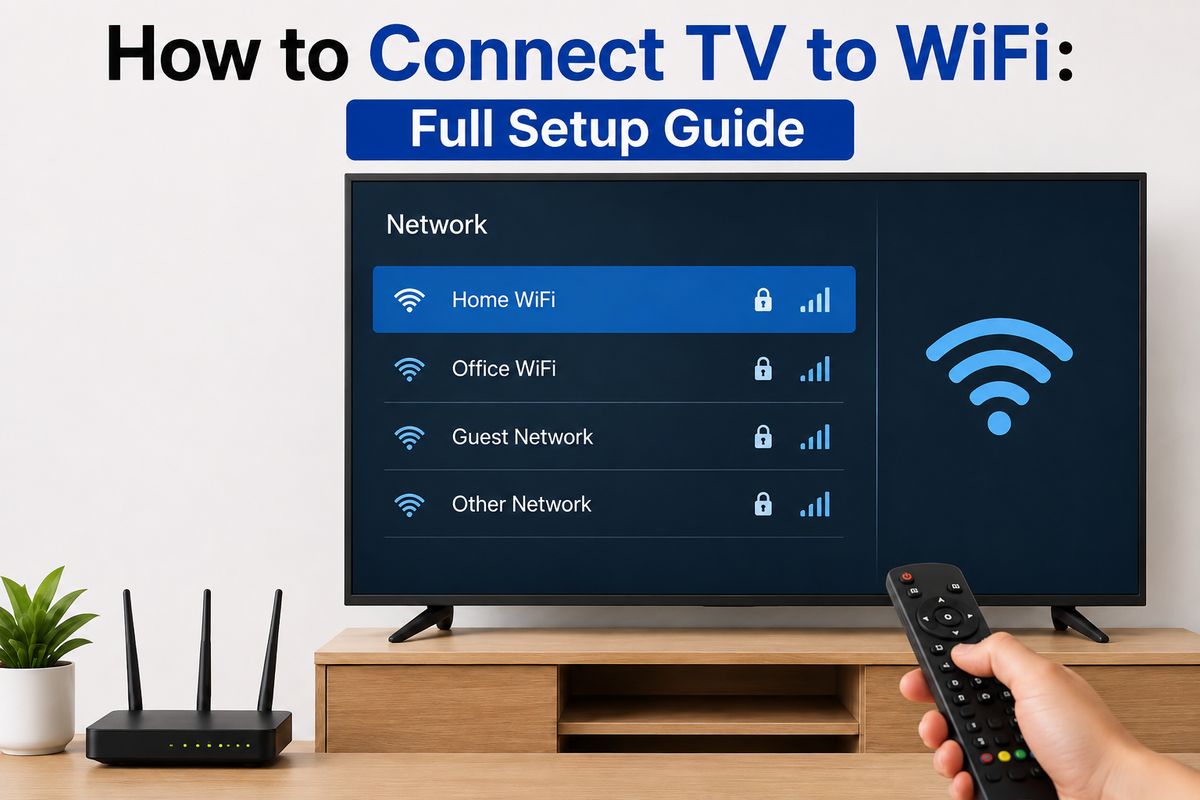
Smart TV WiFi setup follows the same basic pattern no matter the brand, more or less. Grab your remote, head into Settings, and hunt down whatever’s labeled Network, Connection, or just Wireless. The naming shifts from TV to TV for no good reason. Some brands tuck it under General. Others bury it two menus deep like they’re testing your patience.
Here’s roughly how it goes, step by step:
- Turn on your TV and give the home screen a second to fully load, since some sets won’t even show network options until the interface finishes booting up.
- Open Settings, usually that gear icon sitting on your remote or right there on the home screen.
- Head into Network or Connection, then tap Wireless or WiFi, whichever your TV decided to call it.
- Pick your network name (SSID) off the list that pops up.
- Type in your WiFi password on the on-screen keyboard and confirm, fat thumbs and all.
And that’s genuinely it for most modern sets. Give it ten or twenty seconds after you hit connect, since TVs aren’t exactly speed demons when it comes to shaking hands with a network.
How to Connect a Non-Smart TV to WiFi Wirelessly
Here’s the thing: if your TV isn’t smart, none of the above applies to you. You can’t magically add WiFi settings to a screen that doesn’t have a network chip. But you’re not stuck watching cable forever.
The workaround here is just connecting something WiFi-capable to the TV and letting it do the heavy lifting. A Fire TV Stick, Roku, Chromecast, or even an old gaming console gathering dust in a drawer, take your pick. Any of them plug into an HDMI port and take over the internet connection duties. Plug it in, flip your TV’s input over to that HDMI source, and run through that device’s own WiFi setup instead of the TV’s. And just like that, your “dumb” TV is streaming Netflix, no smart chip required. It usually runs under $30 too, and I’d argue it’s sometimes snappier than whatever clunky interface came baked into an older smart TV.
How Do You Connect a TV to WiFi Without a Remote
Lost the remote somewhere in the couch cushions, or it just die, and are the replacements still in transit? There are a few ways around it, none quite as painless as just mashing buttons the normal way.
Some TVs hide a few physical buttons on the unit itself, usually near the bottom bezel or around back. You can limp through the basic menus with those if you’re patient enough not to throw something.
Honestly, a better bet is the companion phone app most manufacturers already make. Think Samsung’s SmartThings, LG’s ThinQ, or the Roku app, whatever fits your set. These work as full remotes over your existing WiFi or Bluetooth. Install it, pair it up, and you’re basically running the TV from your phone without ever touching the original remote again.
If your TV won’t even show you the pairing screen without physical input, don’t panic. A universal remote, or even a basic IR remote app on your phone, can sometimes get you into the settings menu just enough to trigger the app-pairing option.
Connecting Your TV to a Different WiFi Network
Just moved or switched internet providers at the same address? Either way, your TV has no clue what your new WiFi name and password even are. You’ll need to change the network manually.
Go back into Network Settings, and look for an option to reset WiFi on your smart TV or simply “forget” the current network. From there, scan again and select your new network from the list. It’s basically the same setup dance as before, just pointed at a different SSID this time around.
One small annoyance worth flagging: TVs get weirdly stubborn about holding onto old network profiles, even ones you deleted already. If yours keeps reconnecting to a network that no longer exists, don’t just pile the new one on top. Dig through the saved networks list first and delete the old entry before adding anything new.
Using a Hotspot or Phone to Get Your TV Online
No home WiFi set up yet, or maybe you’re somewhere without a router entirely? You can point your TV at a WiFi hotspot from your phone using the exact same steps you’d use for any normal network, nothing special about it.
Flip on your phone’s hotspot and jot down whatever network name and password it spits out. Then go through your TV’s usual network settings and pick that hotspot like it’s any other WiFi source. Just be warned, streaming absolutely tears through mobile data. A couple hours of 4K can quietly burn through several gigabytes before you even think to check, and then the bill shows up and suddenly you remember.
Wired Options: Ethernet and Streaming Sticks
I’ll admit I’m a little biased here, but if your TV sits close enough to your router, skip WiFi entirely and use Ethernet. Nearly every smart TV has a LAN port on the back. Plug one end into the TV, the other into your router, and you’re done. No passwords, no dropped signals, no buffering during the exact moment things get good in whatever you’re watching.
Fire TV Stick users, take note. The WiFi connection actually happens through the stick itself, not the TV. The stick is really the one running the show once it’s plugged in. Android TV boxes and the various streaming dongles out there work the same way. Whatever setup wizard pops up on first boot walks you through picking a network, and after that the TV’s just a dumb display for whatever the stick beams over to it.
2.4 GHz vs 5 GHz: Which Band Should Your TV Use
Most routers these days broadcast two separate networks at once, one running on 2.4 GHz and another on 5 GHz, and somewhere in setup your TV is probably going to make you pick one. There’s a good breakdown of the tradeoffs between the two bands if you want to go deeper than what I’m covering here. Short version: neither band wins outright, they just fail in different ways depending on your setup.
2.4 GHz reaches further through your house and shrugs off walls better than its counterpart. That range comes at a cost though: slower speeds and a lot more interference. Your neighbor’s router, the microwave, or honestly just about anything electronic sitting nearby can mess with it. 5GHz flips that trade entirely. It’s noticeably quicker and cleaner when it’s working, but the signal doesn’t travel nearly as far, and a couple of thick walls can knock it down hard.
My honest take: if your TV sits in the same room as your router, go 5 GHz every time. Once there’s real distance between them, or a wall or two in the way, 2.4 GHz usually wins out instead, even though that feels completely backwards given the number attached to it.
Fixing a TV That Won’t Connect to WiFi
A TV that won’t connect to WiFi has to be one of the most common tech headaches out there. It’s right up there with a printer that just refuses to print. Thankfully, the fixes are almost always painfully simple. Before assuming your TV is broken, try these in order.
- Restart both devices. Unplug the TV and the router, count to thirty, and plug everything back in. This dumb little trick fixes more than it has any business fixing.
- Double-check the password. Passwords are case sensitive, and it’s shockingly easy to fat-finger a capital letter on one of those clunky on-screen keyboards.
- Move closer to the router, just temporarily, to rule out a weak signal being the actual culprit here.
- Forget the network entirely and reconnect from scratch instead of trying to nurse the existing saved connection back to life.
- Check for a firmware update, using a wired connection or USB if that’s an option on your TV.
If your smart TV still isn’t connecting after running through all of that, go check your other devices on the same network. Phone, laptop, or whatever’s handy, if those are working just fine, the problem is almost certainly sitting inside the TV itself and has nothing to do with your internet plan. A factory reset is the last resort, but it does fix a surprising number of stubborn connection issues.
Coverage matters more than people realize too. A weak signal reaching your TV is often a router placement problem rather than a TV problem, and it’s usually cheaper to move the router than to replace anything. If your TV is in a dead zone, no amount of password re-entering will fix that.
Mirroring Your Phone to a TV Over WiFi
Once your TV’s actually online, mirroring your phone screen onto it is really just a nice bonus at that point. Most Android phones can stream Chromecast straight into a smart TV without any extra hardware. iPhones are a bit pickier and need AirPlay instead. Newer Samsung, LG, and Sony sets support that out of the box now. An older TV might still need a separate Apple TV box to bridge the gap.
Pull up the mirroring option from your phone’s quick settings, pick your TV off the list, and the screen should show up within a few seconds if everything’s cooperating. Both devices need to sit on the same WiFi network for any of this to work, and that trips people up way more often than you’d think. The phone is parked on 5 GHz while the TV is stuck on 2.4GHz? They’ll never even find each other.
Honestly, once everything’s connected properly, this whole process becomes something you never think about again until you buy a new router. Set it, forget it, and get back to actually watching something.