
Losing the Roku remote has got to be one of the most universal streaming frustrations there is. It slides down between the couch cushions. A kid walks off with it and forgets where they left it. Or the batteries just die right when you finally sit down to watch something. Happens to everyone eventually.
Here’s the bright side part though: a missing remote doesn’t actually lock you out of your TV. Not entirely, anyway. There are a few genuine ways to get a Roku TV back online without one. There are also a couple of dead ends that look promising but just waste your time. I’ll get into both. If you’re dealing with a different TV brand entirely, by the way, we’ve got you covered. Our general guide to connecting a TV to WiFi covers the basics that apply pretty much everywhere else.
Using the Physical Buttons on Your Roku TV
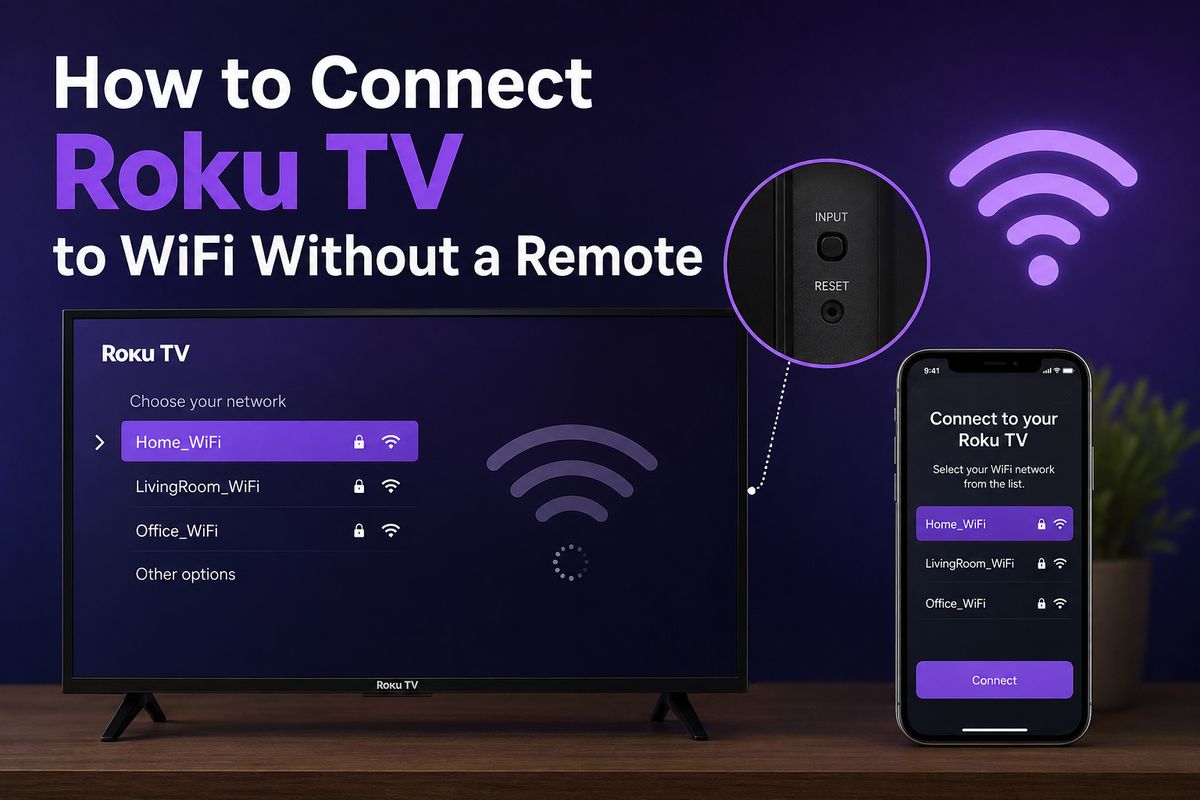
Here’s something a lot of people just don’t know about. Roku TVs aren’t the same as Roku streaming sticks, and the difference matters here. The TV itself usually has actual physical buttons built into the bezel, even if you’ve genuinely never noticed them.
Look along the bottom edge, or occasionally the side, for a small cluster of buttons. You should see buttons for power, volume, and possibly an input or navigation button, depending on the model. On most Roku TVs you can use these to power the thing on and limp through the on-screen menu. That’s usually just enough to reach Settings, then Network, then Set up the connection. It’s slow. I won’t pretend otherwise. But it works, and honestly it’s the most reliable option if your Roku has never once connected to WiFi in its life.
How to Connect a Roku TV to WiFi Without a Remote
If your Roku TV was online before and you just lost track of the remote, the mobile app is genuinely your best bet here. Download the Roku app, whether Android or iPhone, and open it up. It’ll prompt you to sign in with a Roku account. You can tap Continue as guest instead if you’d rather not deal with that right now.
From there: tap Devices in the bottom bar, pick your TV once it shows up on the list, and hit Connect now. Tap the Remote icon and just like that, your phone is the Roku remote. Arrow keys, the OK button, all of it. Navigate to Settings, then Network, then Set up connection, then Wireless, and choose your network just like you would with the actual remote in hand.
The Catch With the Roku App Method
This step is the part almost every other guide conveniently skips, and it trips people up constantly. The Roku app can only find your TV if your phone is already sitting on the same WiFi network your Roku was previously using. That’s genuinely the entire mechanism. Phone and TV find each other over the local network, nothing more mystical than that.
So here’s the problem. If your Roku has never been online, or it’s sitting there totally offline after a factory reset, that’s the situation. There’s no shared network for your phone to even join. You need WiFi to make the app work in the first place, but the app is exactly what you’d normally use to set up WiFi. It’s circular. It’s genuinely circular, not some workaround that nobody’s discovered yet. If that’s the spot you’re stuck in, you’ve really got two options left. You can use the physical buttons mentioned above, or a wired Ethernet cable if your model has a port for one.
Connecting Your Roku TV to WiFi Without a Remote on iPhone
Connecting a Roku TV to WiFi without a remote on iPhone works basically the same as on Android. Same steps, just through the App Store instead of Google Play. Install the Roku app, make sure your iPhone’s sitting on the network your TV used before, and let the app go find it on its own.
One thing worth flagging specifically for iPhone owners here: if “Control by mobile apps” ever got switched off in your Roku’s settings, none of this works. Doesn’t matter what network you’re on, the app simply won’t detect the TV. And there’s genuinely no documented way around that particular wall. You’d need a physical remote, or those built-in TV buttons, just to flip that setting back on first.
A Hotspot Clone and Ethernet Workaround
Here’s a trick worth knowing about, even though it’s a little more involved than the standard app route. Set up a mobile hotspot on your phone using the exact same network name and password your Roku last connected to. Sounds too simple to work, but the TV will often reconnect to your hotspot automatically, thinking it’s just the familiar network coming back. Once that happens, open the Roku app, switch the TV over to your actual network through Settings, then Network, then Set up connection, and that’s it.
If your Roku TV has an Ethernet port, plugging in a cable gets you online immediately. That alone is enough to let the mobile app finally detect the TV, since it’s now reachable on a network your phone can also join. Switch back to wireless from there whenever you want, no remote required at any point.
Why Won’t My Roku TV Connect to WiFi
Sometimes it’s not about the remote at all. Sometimes your Roku TV just won’t connect to WiFi, even when everything else in the house is working fine. A handful of things cause this issue over and over:
- A weak or noisy signal wherever the TV is located can cause this.
- Band steering or MAC filtering on your router, quietly blocking a device it doesn’t recognize.
- A stale network profile left behind from a router swap or a changed password.
If your Roku TV keeps throwing errors even after the obvious troubleshooting, try a Network connection reset. It lives under Settings, then System, then Advanced system settings, and it clears out the old junk without wiping the whole device.
Fixing Common Roku Error Codes
Roku really loves throwing numbers at you instead of just explaining what’s wrong. A few of these codes show up constantly, though. Error 014 and its variants, 014.20, 014.30, and so on, almost always mean a weak WiFi signal reaching the TV. Error 009 usually means the same thing in different clothing, a connection too shaky to finish its handshake. Errors 011 and 022 tend to pop up when the password’s wrong or the router’s actively blocking the connection somehow.
The fix that works most often is boring, honestly, but it works: power-cycle your modem, router, and Roku TV all together. Then connect specifically to a 2.4GHz network if your router splits the bands out separately. That band just handles distance and walls better than 5GHz does, plain and simple. It clears up most of these codes without ever needing a factory reset. For general Roku tips beyond just WiFi, there’s a solid rundown of Roku tricks worth a look, including some genuinely useful shortcuts most people never stumble onto.
Connecting an Older Roku TV to WiFi
Older Roku TVs sometimes tuck the network menu somewhere a little different than current models do. Usually still under Settings, just without the cleaner layout newer software runs now. If you’re trying to figure out how to connect an older Roku TV to WiFi and the app simply can’t find it, there’s a decent chance you know why already. The TV’s genuinely never been online. That same circular app problem from earlier applies here too, and there’s no way around it. Lean on the physical buttons if your set has them.
For anyone still dealing with dropouts once they’re finally connected, coverage matters just as much as which model you own. Someone at MakeUseOf mapped their own dead zones and fixed them by moving the router rather than buying new hardware, and the same logic applies here. Before you adjust the TV’s network settings again, please check the placement.
Honestly, most of this stuff comes down to one of two things. Either there’s no shared network for the app to work with, or the signal’s just too weak to hold a connection steady. If you’re setting up from scratch, start with the physical buttons; if your Roku’s been online before, use the app. Either way, you’ll probably be back to streaming faster than buying a replacement remote would’ve taken anyway.