
LG TVs are genuinely great pieces of hardware, the OLED panels alone are worth the price of admission. But webOS has a real talent for turning a simple WiFi connection into a whole ordeal. And if “Internet Connectivity Problem” has popped up on your screen for the third time this week alone, no, you’re not imagining it. That’s genuinely one of the most common complaints LG owners bring up. Thankfully, most of it comes down to software quirks rather than a dying TV.
Let’s walk through how to get connected in the first place. Then we’ll get into why LG TVs seem to struggle with this more than other brands. If it’s actually a different TV brand giving you grief, we’ve got a general guide to connecting a TV to WiFi that covers the basics too.
How to Connect Your LG TV to WiFi
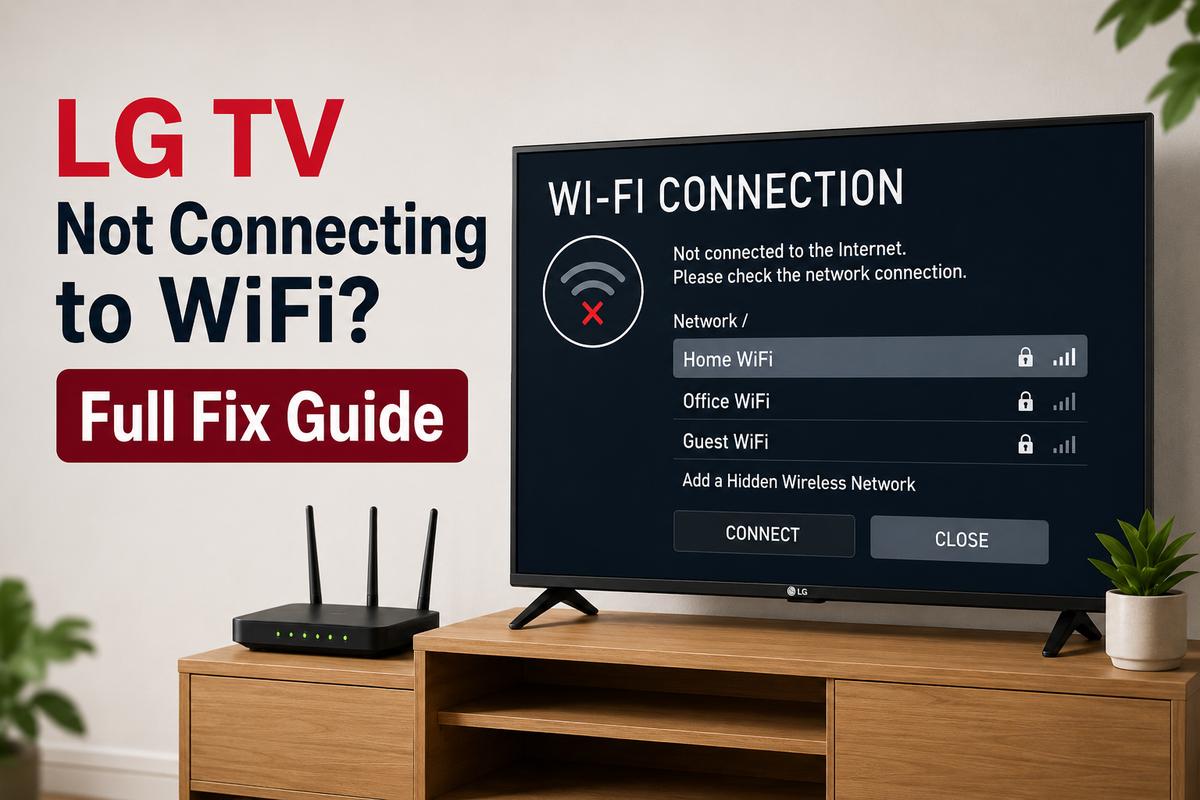
Connecting an LG TV to WiFi the first time around is honestly pretty painless, more painless than half the stuff webOS makes you deal with later. Grab your remote, head into Settings, and if your model runs a simplified menu up front, look for All Settings from there.
From there:
- Go to General, then select Network.
- Choose Wi-Fi Connection off the list of options.
- Pick your network name (SSID) once the TV’s done scanning.
- Enter your WiFi password on the on-screen keyboard and confirm.
That’s genuinely the whole process under normal circumstances. Give it a few seconds to shake hands with your router, and app icons should replace that network menu soon enough.
Some older LG models bury this under Network Settings instead of just plain Network. A few tuck Wi-Fi connections one level deeper under Advanced Settings. It’s annoying, sure, but the logic holds up everywhere regardless.
Why Won’t My LG TV Connect to WiFi
If you’re asking why your LG TV just won’t connect to WiFi at all, there’s rarely one tidy answer. A handful of culprits tend to show up again and again:
- A wrong or recently changed router password. Easy to overlook if someone else in the house updated it.
- Outdated webOS firmware, particularly on TVs that haven’t bothered checking for updates lately.
- Router channel congestion, which only gets worse as more devices pile onto the same network.
- A quietly corrupted saved network profile sitting on the TV itself.
None of these point to a broken television. They’re the kind of thing you fix in ten minutes once you know where to look, not a reason to start browsing replacement TVs.
The Quick Start+ Bug That Breaks LG WiFi
Here’s something a lot of people don’t know about, and it’s honestly one of the sneakier causes of LG TV WiFi problems. Quick Start+ is LG’s instant-on feature, meant to make the TV boot faster by keeping certain network processes alive in a low-power state. The problem is that this can prevent the WiFi module from doing a full, clean restart. It just hangs onto stale connection data instead and flat out refuses to reconnect the way it should.
You’ll find it buried under Settings, then General, then Devices, then TV Management. That exact path wanders a bit depending on your webOS version. Turn Quick Start+ off. Here’s the part almost everyone skips, though: you actually have to unplug the TV for around 30 seconds afterward, not just switch it off. Powering it down with the remote alone just leaves it sitting in that same half-asleep state. Quick Start+ put it in to begin with. The fix never actually takes.
Fixing an LG TV That Won’t Connect to WiFi
If your LG smart TV still isn’t connecting to WiFi even after checking all that, work through the list below in order, not randomly.
- Restart the router first, then the TV. Unplug both, count off about 30 seconds, then plug the router back in. Let it fully boot before you touch the TV.
- Double-check the password. Passwords are case sensitive, and that clunky on-screen keyboard makes it stupidly easy to fat-finger a capital letter without ever noticing.
- Turn off Quick Start+ as covered above, then do the full unplug.
- Forget the network on the TV entirely and reconnect from scratch, rather than trying to nurse that old saved connection back to life.
- Check for a webOS update through the settings menu, or load one via USB if the TV can’t even reach the internet to check for itself.
If an LG TV still will not connect to WiFi after all of that, go test your phone or laptop on that same network instead. Everything connects fine there? Then the issue is almost certainly sitting inside the TV itself, not your router and not your internet plan.
Resetting Network Settings on an LG TV
Sometimes the cleanest fix really is just wiping the slate clean. Head into Settings, then Network, then Wi-Fi Connection, and hunt around for Advanced or whatever similar submenu your TV uses. Somewhere in there you’ll usually find an option called Reset to Initial Settings or Reset Network. The exact wording wanders a bit by webOS version.
This wipes out any corrupted saved profiles but leaves your apps and picture settings completely untouched. That makes it a much gentler step than a full factory reset. Run through the WiFi setup again afterward like it’s a brand new TV.
LG TV Stuck on “Internet Connectivity Problem”
This specific message means the TV can see your network but isn’t actually reaching the internet through it. It’s a slightly different animal than a TV that can’t find any networks at all.
First, check your router’s status lights. If that internet light is off or blinking in some weird pattern, the problem sits upstream of your TV entirely. No amount of TV troubleshooting will touch it. Router looking healthy? Go back into the TV’s network settings and double-check that it’s actually on the band you meant to pick. Many LG models just connect more reliably on 2.4 GHz than 5 GHz, mostly because that band muscles through walls and furniture a lot better. Reconnecting on 2.4 GHz specifically fixes these issues more often than people expect. Coverage matters just as much as the band you pick, though. A router that’s tucked in a closet or corner causes the same dropout problems, no matter how many resets you try.
Keeping Your LG TV’s WiFi Connection Stable
Once you’re actually online, a little maintenance goes a long way toward not ending up back here in a month. LG’s webOS ReNew program pushes updates for years after a TV ships. There are some genuinely useful hidden settings buried in the interface worth digging into beyond just WiFi. If your LG TV sits far from the router, it’s worth fixing that before you touch another menu.
When It’s Time for a Factory Reset
A full factory reset is the last resort, not the first move. It wipes everything, apps, saved logins, all of it. Only reach for this after Quick Start+, the network reset, and a router restart have all failed to help.
You’ll find it tucked under Settings, then General, then Reset to Initial Settings. Confirm you actually want to go through with it, because there’s no undo button once that process starts. And in the rare case a factory reset still doesn’t bring your connection back, that usually points toward an actual hardware fault in the WiFi module itself. At that point, your best option is to contact LG support directly.
Honestly, the vast majority of LG TV WiFi headaches trace back to Quick Start+ or some stale saved network, not to anything that’s actually broken. Work through the basics first, and you’ll likely be back to streaming before needing a factory reset.