
AI-generated illustration
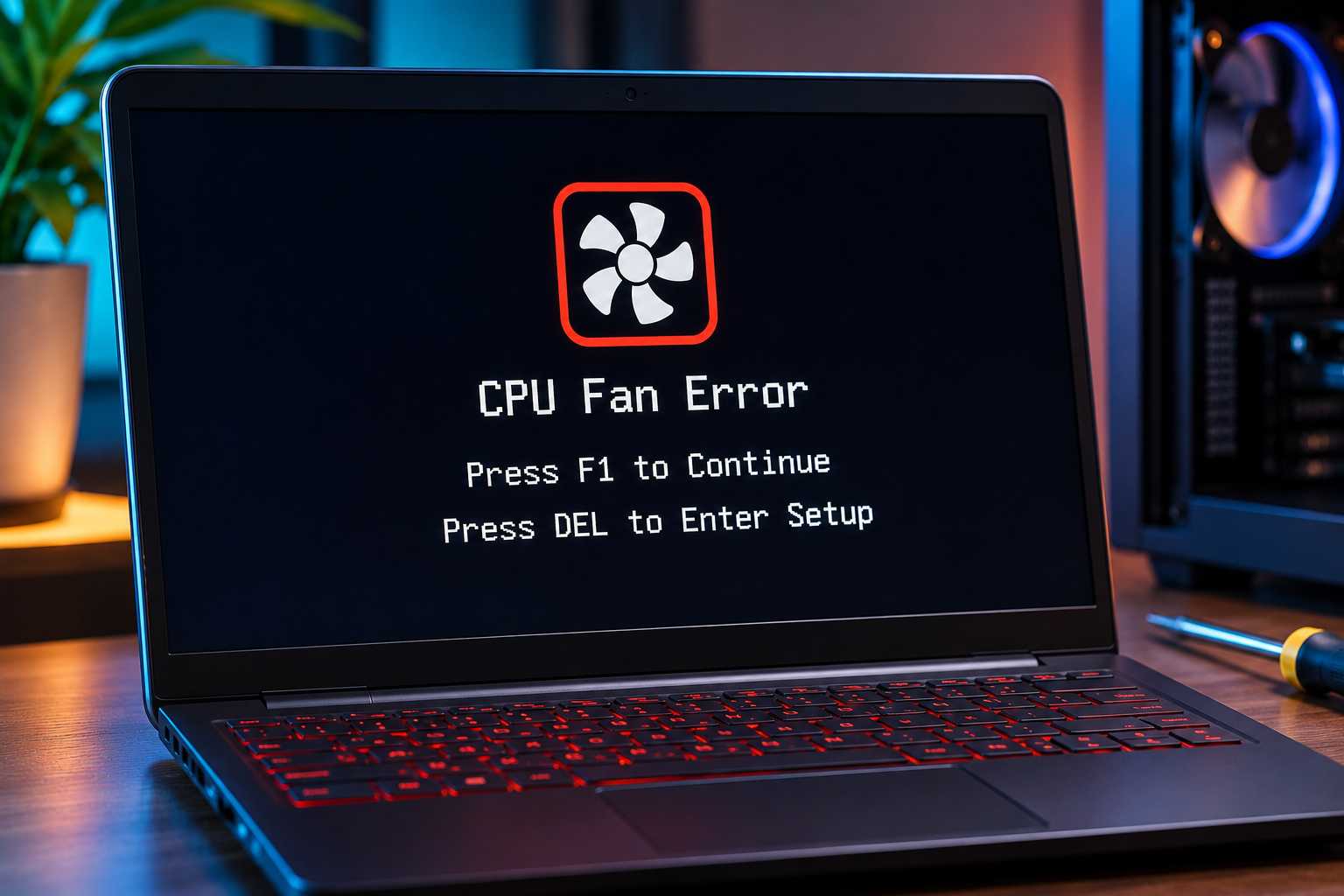
A CPU fan error looks scary, and it usually isn’t. You press the power button, and instead of Windows, you get a black screen telling you something is wrong with the fan. Annoying, but most of the time it’s a five-minute fix.
I game on laptops, which rarely show this exact message. But I’ve dealt with plenty of fan and heat trouble on my old Acer Predator. So here’s what the error means, and how to clear it.
What Does CPU Fan Error Mean?
A CPU fan error means your motherboard can’t detect the CPU fan spinning at boot. It checks the fan speed on the CPU_FAN header, and if it reads zero or very low RPM, it stops and warns you. That’s all it is.
The motherboard does this to protect the chip. A CPU without a working fan can overheat in seconds under load. So the warning is helpful, even if it’s irritating.
CPU Fan Speed Detection Error
You might see a slightly different message: CPU fan speed detection error. Same idea. Some brands, like HP and Dell, use this wording. It means the system can’t read a speed signal from the fan.
Common Causes of a CPU Fan Error
Most CPU fan errors come down to a handful of simple causes. Here are the usual suspects:
- The fan is plugged into the wrong header. This is the big one. If the fan cable sits in a SYS_FAN or CHA_FAN header, the board sees nothing on CPU_FAN.
- The fan isn’t spinning. Dust, a stuck cable or a dead motor can stop it. A CPU fan not spinning is a real problem, not just a warning.
- The fan spins too slowly. Some quiet coolers idle at very low RPM. The board thinks that’s a failure.
- You’re using an AIO liquid cooler. The pump might be on a different header, so CPU_FAN reads nothing.
- A loose CPU fan connector. The 4-pin plug can work loose, especially after moving the PC.
If the PC powers on but the screen stays black with no message at all, that’s a different problem.
How Do You Fix a CPU Fan Error?
Move the fan cable to the CPU_FAN header, make sure the fan spins, then lower the fan speed limit in the BIOS if needed. Most people fix it in the first two steps.
Check the CPU Fan Header
Open the case and find where the CPU fan cable plugs in. It should go into the header labeled CPU_FAN on the motherboard. If it’s anywhere else, move it.
The CPU fan cable is a small 3-pin or 4-pin plug. Push it in firmly. It only fits one way, thanks to a small plastic guide. This alone fixes a lot of errors.
CPU OPT vs CPU FAN
Many boards have a second header called CPU_OPT. People mix these up all the time. The CPU_FAN header is the main one the board checks at boot. CPU_OPT is for a second fan on the cooler, or an AIO pump.
So with CPU_OPT vs CPU_FAN, the main fan always goes on CPU_FAN. If you have a dual-fan cooler, the second fan goes on CPU_OPT.
Make Sure the Fan Actually Spins
Power on with the side panel off and watch. If it doesn’t spin at all, check for a cable caught in the blades, or dust buildup. If it still won’t move, the fan has likely died. There’s a good guide on what to do when a CPU fan won’t spin if you want to dig deeper.
Replace a Dead Fan
A dead fan means you need to change the CPU fan before using the PC. Don’t just ignore it. Check your CPU temps the moment it’s replaced.
Adjust the BIOS Fan Settings
If the fan spins fine but the error stays, the board may be expecting a faster idle speed. In the BIOS, find the fan settings and lower the CPU fan speed low limit. Most boards let you set it to 200 or 300 RPM.
For AIO coolers, some people set the CPU fan header to “Ignore.” Only do this if you’re sure the pump and fans are connected and working. Otherwise, you’re switching off a safety check. This walkthrough of the fan error is handy if your board’s BIOS looks different from what I describe.
How to Control CPU Fan Speed
Once the error is gone, you might want to tweak how the fan behaves. Here’s how to control CPU fan speed on most PCs:
- In the BIOS. Look for “Q-Fan,” “Smart Fan” or “Fan Control.” Set a fan curve that ramps up as temps rise.
- With software. Tools like FanControl on Windows let you change CPU fan speed without rebooting.
- On laptops. Use the maker’s app, such as Armoury Crate or Lenovo Vantage. Laptops usually offer preset modes instead of custom curves.
Why Is My CPU Fan So Loud?
If your fan screams all the time, something’s off. Dust is the most common reason. A CPU fan making noise can also mean worn bearings, or a fan curve that’s too aggressive. HP CPU fan noise complaints, for example, often come down to dust in a small case.
Sometimes the fan is loud because the CPU is working hard in the background.
Clean it first. If it’s still loud, the fan may be on its way out. An aftermarket CPU fan or a better cooler usually fixes it for good.
How to Clean a CPU Fan
Cleaning is the cheapest fix for most fan problems. Here’s how to clean a CPU fan on a desktop:
- Shut down and unplug the PC. Hold the power button for a few seconds to drain leftover power.
- Hold the fan blades still. Spinning a fan with compressed air can damage it.
- Blow out the dust. Short bursts of compressed air, from a few inches away.
- Wipe the blades. A slightly damp cloth works for stubborn dust.
If you take the cooler off, you’ll need fresh paste.
How to Clean a CPU Fan on a Laptop
Cleaning a laptop fan is a bit different. Blow compressed air into the vents in short bursts, with the laptop off. For a deeper clean, you’ll need to open the bottom panel. I’d leave that to a repair shop if you’re not comfortable, since laptop CPU fan repair can get fiddly fast.
Choosing a Replacement CPU Fan
If your fan is dead, here’s what matters when you buy a new one:
- Size. Common CPU fan sizes are 92mm, 120mm and 140mm. Check what fits your cooler.
- Connector. A 4-pin PWM fan gives the motherboard proper speed control.
- Airflow direction. Look for the arrows on the fan frame. CPU fan direction should push air through the heatsink toward the rear exhaust.
- Quality. A Noctua CPU fan, or a solid mid-range option, will last for years and run quietly.
Looking for the best CPU fan cooler overall? A good tower air cooler covers most chips. Bigger chips, like the ones in my best AM4 CPU list, deserve something better than a stock cooler.
Frequently Asked Questions
It means the motherboard can’t detect the CPU fan spinning at boot. Usually the fan is on the wrong header or spinning too slowly.
Not unless you’re sure the fan works. If the fan isn’t spinning, your CPU can overheat fast.
Set a fan curve in the BIOS fan settings, or use a tool like FanControl in Windows. On laptops, use the maker’s app.
Usually dust, worn bearings or a heavy background task. Clean the fan first, then check CPU usage.
Look for the arrows on the fan frame. The fan should push air through the heatsink toward the rear exhaust fan.
My Take
A CPU fan error sounds like a disaster. Most of the time, it’s a cable in the wrong place. Check the header, check the fan spins, and adjust the BIOS limit if you need to.
The one thing I wouldn’t do is switch off the warning and forget about it. I’ve lived with an overheating laptop, and it’s no fun. If the fan really is dying, replace it now, before it becomes a bigger, more expensive problem.