
My current gaming laptop runs a Ryzen 7 and an RTX 5050. Before that, I used an Acer Predator with an Intel Core i5-8300H, and that one had real overheating problems. Even now, I don’t take chances. A cooling fan sits under my laptop pretty much all the time. So when I look at CPU temp numbers, I’m not reading them like a spec sheet. I’m reading them like someone whose palms have been cooked by a keyboard deck during a long gaming session.
Here’s the thing: most people panic at the wrong numbers. They see 85°C and assume the chip is dying. Or they see 45°C at idle and think something is broken. Neither is usually true. Cooling is one of those things nobody tells you about when buying a gaming PC, and it shows.
So let’s go through what a normal CPU temp actually looks like, what’s too hot, and what I do about mine.
What Is a Normal CPU Temp?
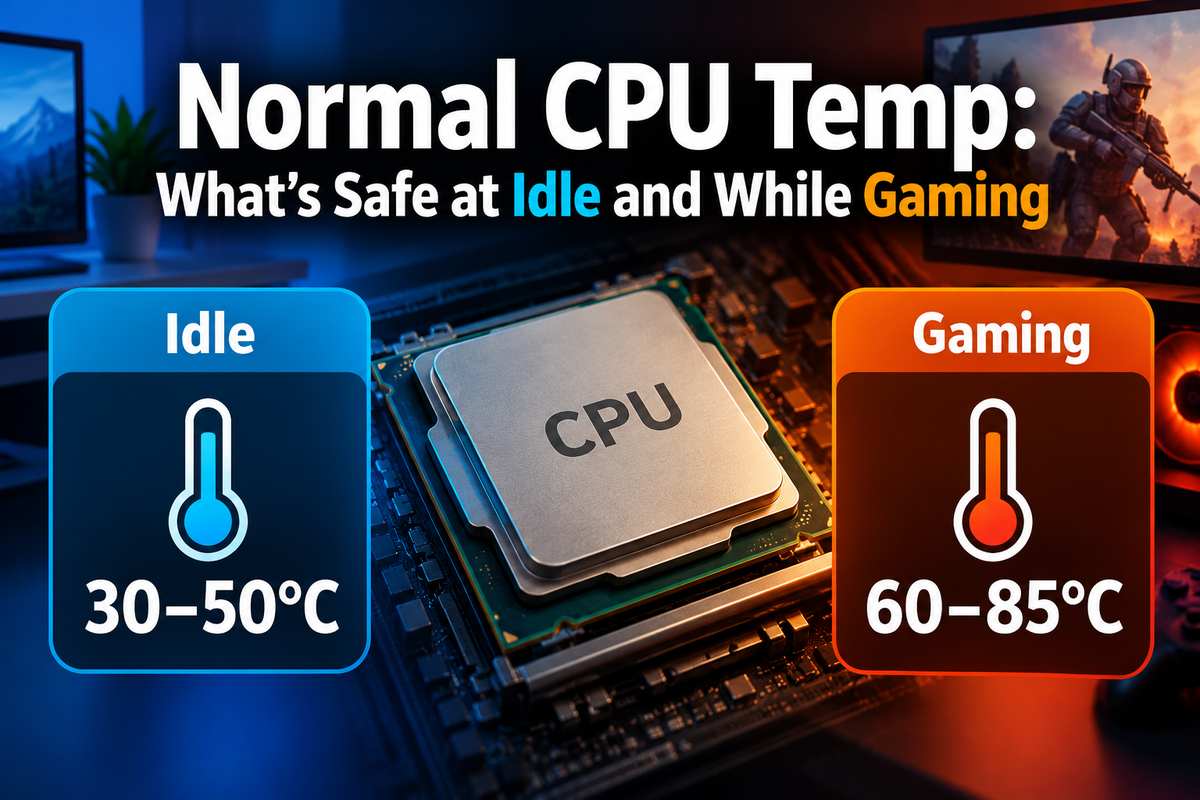
A normal CPU temp sits between 30°C and 50°C at idle and between 60°C and 85°C under a gaming load. Short spikes above that are fine. What matters is where the number settles after a few minutes of work.
That’s the short answer for normal CPU temperature. The longer answer depends on your chip, your cooler and the room you’re sitting in. A hot summer afternoon will push any machine higher than a cool winter evening. Funny how that works.
So what temp should my CPU be? Here’s the rough CPU temperature range I go by:
|
State |
Typical temp |
What it means |
|
Idle (desktop open, nothing running) |
30 to 50°C |
Healthy |
|
Light use (browsing, video, office work) |
40 to 65°C |
Healthy |
|
Gaming |
60 to 85°C |
Normal |
|
Long heavy load (rendering, stress tests) |
80 to 95°C |
Fine on modern chips, worth watching |
|
Near the chip’s limit |
95 to 105°C |
The CPU starts slowing itself down |
CPU Idle Temp
A healthy CPU idle temp is usually 30 to 50°C. Mine lands in that same band. If your idle number sits above 60°C with nothing open, something is off. Usually it’s a background app chewing the CPU or dust choking the fan.
Average CPU Temp During Everyday Use
The average CPU temp for normal stuff like browsing is a bit higher, around 40 to 65°C. Chrome with 30 tabs counts as normal stuff, sadly. That’s still a good CPU temp, and no reason to worry.
What Is a Good CPU Temp While Gaming?
A good CPU temp while gaming is anywhere from 60°C to 85°C. Desktops with decent coolers tend to sit at the lower end. Laptops sit at the upper end, and some go past it.
On my laptop, gaming temps run from 50 to 80°C depending on the game. Lighter games stay in the 50s. Cyberpunk pushes it right up to 80. So my own normal CPU temp while gaming lines up with that range, as long as the cooling fan is running underneath. More on that later.
Why Some Chips Run Hotter in Games
Sure, 85°C sounds scary. But some chips are built to run there. AMD’s X3D chips are a good example. A Ryzen 7 9800X3D hitting 85 to 90°C in games is normal, and I covered that in my best AMD CPU for gaming picks too. The extra cache sits on top of the cores and holds heat. That’s the trade for the frame rates.
So the average CPU temp while gaming tells you more when you compare it to your specific chip. A 9800X3D at 85°C is fine. An older quad core at 85°C in a light game might point to a cooling problem.
How Hot Is Too Hot for a CPU?
For most modern chips, 95°C to 100°C is too hot. That’s the point where the CPU hits its built-in limit and slows itself down to protect itself. This limit is called TjMax, and every chip has one.
Here’s the max CPU temp for the chips most people own right now:
|
CPU family |
Max temp (TjMax) |
|
AMD Ryzen 7000 and 9000 desktop |
95°C |
|
AMD Ryzen laptop chips (recent) |
Around 100°C |
|
Intel 12th, 13th and 14th Gen Core |
100°C |
|
Intel Core Ultra 200S (Arrow Lake) |
105°C |
Intel raised that ceiling by five degrees with its newer chips. Reports on Intel’s higher TjMax for Arrow Lake put the new limit at 105°C, up from 100°C. Which, I’ll admit, made me raise an eyebrow.
What CPU Temp Is Too High for Daily Use?
Hitting the limit for a second won’t kill anything. The CPU throttles, the clocks drop and you lose some performance. If it gets even hotter, the system shuts down. That’s the safety net.
So in practice, a safe CPU temp for daily use is anything under about 90°C. That’s my rule anyway. Above that, I want to know why.
Why Do Ryzen 7000 and 9000 Chips Sit at 95°C?
Newer Ryzen chips run at 95°C on purpose. AMD tunes them to boost as hard as possible until they reach that temperature, then hold there. In a nutshell, the chip treats 95°C as a target, not a warning.
AMD has said this out loud. The company stated that Ryzen 7000 chips are built to run at 95°C all day, with no loss of lifespan or reliability. It ran all its quality testing at that temperature.
I’ll be honest, I’m a bit skeptical of the “run it hot forever” idea. Not because I think AMD is lying about the silicon. The chip probably is fine. But the chip isn’t the only thing inside the machine.
On a desktop with good airflow, sure, let it boost. On a laptop, that heat has nowhere to go. It soaks into the chassis, the keyboard and the battery sitting a few millimeters away. That’s where my worry lives.
So the ideal CPU temp for a Ryzen desktop under full load might really be 95°C. The optimal CPU temperature for a laptop you rest on your lap is a different story.
Laptop CPU Temps vs Desktop CPU Temps
Laptops run hotter than desktops, full stop. A typical CPU temperature for a gaming laptop under load is 75 to 90°C. A desktop with a good tower cooler might sit 10 to 15 degrees lower doing the same work.
The reason is simple enough. A desktop has a big heatsink, more fans and a lot of empty air around everything. A laptop squeezes the CPU and GPU into a thin box and shares one cooling system between them. When the GPU gets busy, the CPU gets warmer too. They’re roommates.
Why High Laptop Temps Bother Me
This is where I part ways with the “90°C is totally fine” crowd. Too much heat makes the whole laptop uncomfortably hot. The keyboard gets warm, the palm rest gets warm, and the bottom gets hot enough that I wouldn’t put it on my legs.
And heat doesn’t only affect the CPU. Over time it can wear on other components, especially the battery. The CPU might survive 95°C for years. I’m less sure about everything around it.
So for laptops, my healthy CPU temp target is “under 85°C, most of the time.” It’s not an official number. It’s just what keeps my machine bearable to use.
How to Check CPU Temp on Windows 11 and 10
Windows doesn’t show CPU temperature anywhere by default, which still surprises me. Task Manager shows GPU temperature on its Performance tab, but not the CPU. So you need a separate tool.
I mostly keep Task Manager open myself. It’s great for seeing what’s eating the CPU, and the GPU temp is right there. For the actual CPU number, though, you need something else.
How Can I See CPU Temperature?
Here are the easy ways to see the temperature of a CPU without much effort:
- HWiNFO. This is free and shows every sensor your PC has. It looks busy at first. Open the “Sensors only” mode and look for “CPU (Tctl/Tdie)” on AMD or “CPU Package” on Intel.
- Core Temp. Lighter and simpler. It just shows CPU temps per core and sits in your system tray.
- Your laptop’s own app. Armoury Crate, Lenovo Vantage, OMEN Gaming Hub and others usually show CPU temps on their main screen. Kind of the easiest option if you already have one installed.
- BIOS or UEFI. Restart your PC and open the BIOS. It shows the CPU temp, but only at idle, so it’s not much help for gaming.
How to check CPU temp on Windows 11 is the same as on Windows 10. Every tool above works on both. Any of them works as CPU temp check software. Want to know how to monitor CPU temp during a game? HWiNFO can log it in the background, so you can check the max afterwards.
Signs of CPU Overheating
When a CPU overheats, it rarely just dies. It warns you first, in ways that are easy to mistake for other problems. Here’s what CPU overheating usually looks like:
- Sudden FPS drops after a few minutes. The game runs fine, then stutters once the chip heats up. That’s thermal throttling doing its job.
- Fans running at full blast all the time. Loud fans at idle mean the cooler is struggling. Dust is usually the reason.
- Random shutdowns or restarts. This is the last line of defense. The system cuts power before the chip gets damaged.
- A CPU overtemperature error at boot. Some motherboards show this warning before Windows even loads. It usually points to a dead fan, a loose cooler or dried-out thermal paste.
- A laptop that’s too hot to touch. Not exactly a technical test. But if the bottom feels like a stove, something needs attention.
When It’s Not Actually Heat
Stutter isn’t always a temperature problem. Sometimes the game is simply running out of memory. My old Predator came with just 8GB, and I ended up adding 16GB more. If your temps look normal and games still hitch, check whether you have enough RAM for gaming before blaming the CPU.
How to Lower CPU Temp
You can bring CPU temps down a lot without buying anything big. Cleaning and airflow fix most problems. Here’s what has worked for me, and what I’d try next:
- Use a cooling pad on laptops. This is what I do. A laptop cooling fan underneath keeps my temps in check during long sessions. Without it, things get a lot hotter, a lot faster.
- Clean the dust out. Dust builds up in vents and heatsink fins over time. A can of compressed air every few months makes a real difference. It’s boring, but it works.
- Give it room to breathe. Never game on a bed or a pillow. Hard, flat surfaces only. Lifting the back of a laptop a little also helps air get in.
- Cap your frame rate. If your screen is 60Hz, running a game at 140 FPS just makes heat for no reason. Set a frame cap and watch the temps drop.
- Switch the power mode. Balanced or Silent mode in your laptop’s app cuts heat at a small performance cost. Worth trying for lighter games.
- Replace the thermal paste. Paste dries out after a few years. Fresh paste can drop temps by several degrees. This one takes a bit of care, so watch a guide first.
- Upgrade the cooler on a desktop. A better CPU heatsink or a tower cooler is the biggest single fix for a desktop. Stock coolers do the bare minimum.
If you’re still getting overheating after all of that, look at the fan itself. A fan that has stopped spinning won’t show up as anything other than heat.
My Take
Normal CPU temps are higher than most people think, and that’s fine. A desktop sitting at 80°C in a game is doing its job. Even 95°C on a new Ryzen is working as designed, according to AMD anyway.
But I don’t fully buy the “ignore it” advice for laptops. My own machine runs 30 to 50°C at idle and 50 to 80°C in games, and that’s only with a cooling fan doing extra work. Without it, I’d be worried, and the laptop would be miserable to touch.
Chips are only going to get hotter, too. Intel just bumped its limit to 105°C, and AMD is happy at 95°C. So knowing your normal CPU temp, and keeping an eye on it, will matter more with every new generation. Check yours tonight. It takes two minutes.