
Vizio TVs pack a lot of value for the price, genuinely. But SmartCast has this habit of picking the absolute worst moment to lose its WiFi connection. Occasionally the TV connects to your network just fine, and then SmartCast itself just refuses to load anything at all. Other times the whole setup acts like your router doesn’t even exist. Two different problems, honestly, with two different fixes, and I’ll walk through both here along with everything that sits in between. If you’re troubleshooting a different TV brand entirely, our general WiFi setup guide covers the basics.
How to Connect a Vizio TV to WiFi
Connecting a Vizio TV to WiFi for the first time is pretty painless, honestly one of the more straightforward setups out there. Grab your remote, press the Menu button, and head into Network.
- Select Network Connection, then choose Wireless.
- Pick your network name off the list that shows up.
- Type your password on the on-screen keyboard and confirm.
- Wait for the checkmark confirming things are actually connected.
How do I connect my Vizio TV to WiFi if that menu path looks nothing like what I just described? Older models sometimes bury this under Setup instead of giving it a standalone Network option. The steps underneath still work the same regardless.
Why Won’t My Vizio TV Connect to WiFi
A few things cause this over and over again. None of them mean your TV’s actually dying on you:
- A wrong or recently changed router password, easy enough to overlook if someone else in the house updated it without telling you.
- A stale saved network profile left behind from a router swap.
- Too many devices already crowding your router, bumping up against a client limit.
- A weak signal wherever the TV happens to sit relative to your router.
Work through these before you jump to assuming anything’s broken. Most of the time it really is just one of these four.
When SmartCast Won’t Load Even Though WiFi Is Connected
This is the one that trips people up constantly, since the TV itself shows a connected WiFi icon plain as day. And yet SmartCast just spins forever or throws up a “No Internet Connection” message anyway. It feels like a contradiction the first time you see it. That’s a genuinely different problem than the TV failing to join your network in the first place. Some Vizio sets even display a specific error code right alongside the message, something in the 2411 series usually. Doesn’t mean much on its own, but it points to the same underlying issue every time.
Here’s what’s actually happening under the hood: the TV can reach your router just fine, no problem there. Something’s blocking the handshake between SmartCast and Vizio’s own servers somewhere past that point. DNS is the usual suspect. Go to Menu, then Network, then Manual Setup, and flip DHCP off so the DNS fields actually become editable. Set Primary DNS to 8.8.8.8 and Secondary DNS to 8.8.4.4, save it, and then reboot the TV. There’s a full walkthrough of DNS settings if you want the deeper explanation of how this actually works across different devices.
If DNS doesn’t do it, sometimes a full power cycle clears out whatever’s stuck on Vizio’s end instead. Unplug the TV for a genuine sixty seconds rather than just hitting the power button. Standby mode keeps certain processes alive that a real unplug would finally kill off.
The Setup Loop That Traps Older Vizio TVs
Here’s a genuinely sneaky one that catches a lot of people off guard. Some older Vizio sets get stuck endlessly looping through the WiFi setup screen, asking for your password over and over without ever actually finishing. This happens even when you’re completely, one hundred percent certain the password’s correct, which is maddening. The real cause usually has nothing to do with your password at all. It’s a pending firmware update the TV can’t download because it’s stuck in setup instead of actually reaching the update server. A weird chicken-and-egg loop, basically, and not an obvious one to spot the first time.
The fix is backing out of setup entirely rather than retyping your password for the fifth time. Press Menu, go to System, then Check for Updates. Let it pull the update directly instead of fighting through the setup wizard over and over. Once that finishes, the normal WiFi setup usually completes without any more looping at all. This tends to show up most often on TVs that sat unused in a box for a while before finally getting set up. They’re often several firmware versions behind right out of the gate, which is exactly what starts the whole loop.
Fixing a Vizio TV That Won’t Connect to WiFi
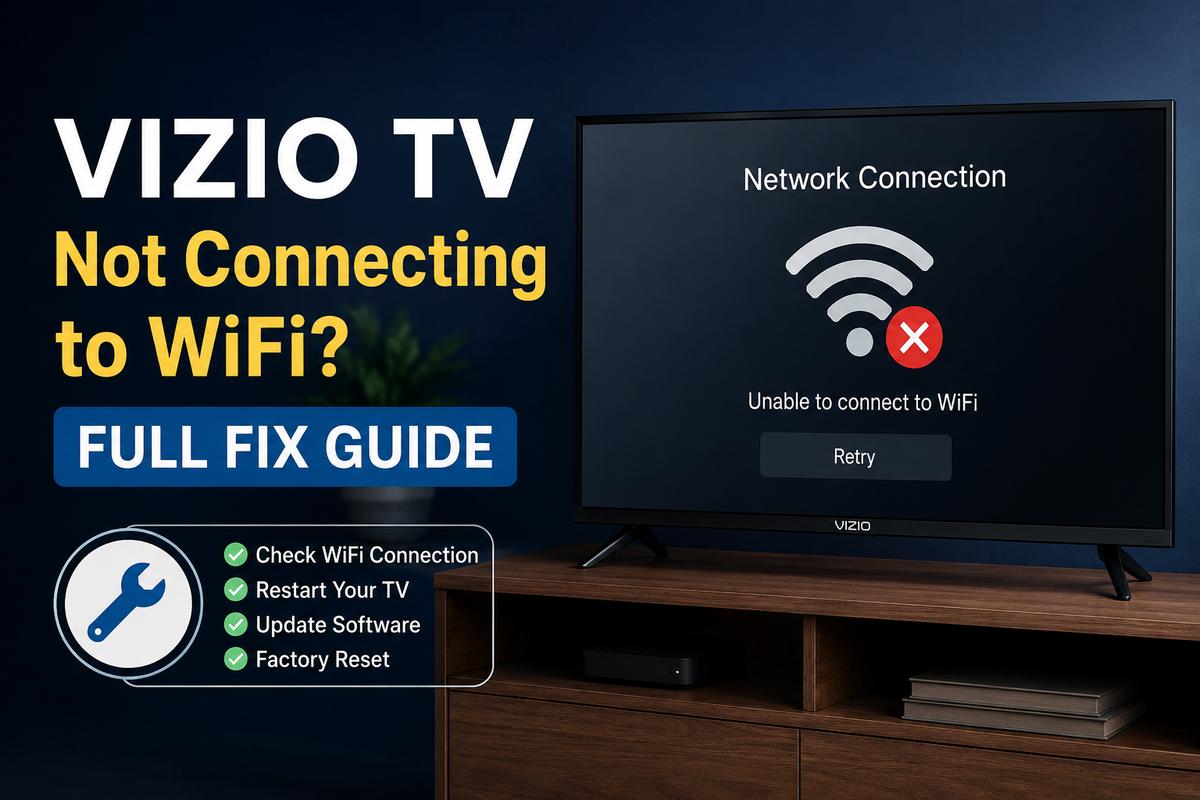
If your Vizio TV won’t connect to WiFi even after checking all the basics above, work through these in order rather than jumping around.
- Restart the router first, then the TV. Unplug both, wait about a minute, plug the router back in, and let it fully boot before you even touch the TV again.
- Test with an Ethernet cable if your TV has a port for one. If it connects online through Ethernet just fine, the wireless adapter itself is probably the real problem.
- Forget the network on the TV and reconnect from scratch instead of trying to nurse the old saved connection back to life.
- Move closer to the router, even just temporarily, to rule out a weak signal as the culprit.
If none of that works, and Ethernet fails too, that’s a much stronger sign of an actual hardware issue in the WiFi module. Probably not something a settings tweak is going to fix on its own.
What to Do When a Vizio TV Does Not Connect to WiFi at All
Sometimes a Vizio TV does not connect to WiFi in any form whatsoever. It won’t even show your network name in the list of available connections. Before assuming the worst, check whether your router’s actually broadcasting on a band the TV supports. Some older Vizio models only handle 2.4 GHz, full stop. If your router hides that band behind the exact same name as its 5GHz counterpart, the TV might simply never see it at all.
Split the bands into separate network names in your router settings, something like HomeWiFi-24 works fine for this. Then go select that specific network on the TV. Coverage plays a real role here too, more than people expect. A router that’s tucked in a closet or corner is going to cause the exact same problem. It doesn’t matter how many times you reset the TV’s settings.
Honestly, most Vizio WiFi problems come down to one of three things. DNS, a stale network profile, or a router quietly hiding its 2.4 GHz band from view. Work through the basics first. A full factory reset should be your very last resort here, not the first thing you reach for.