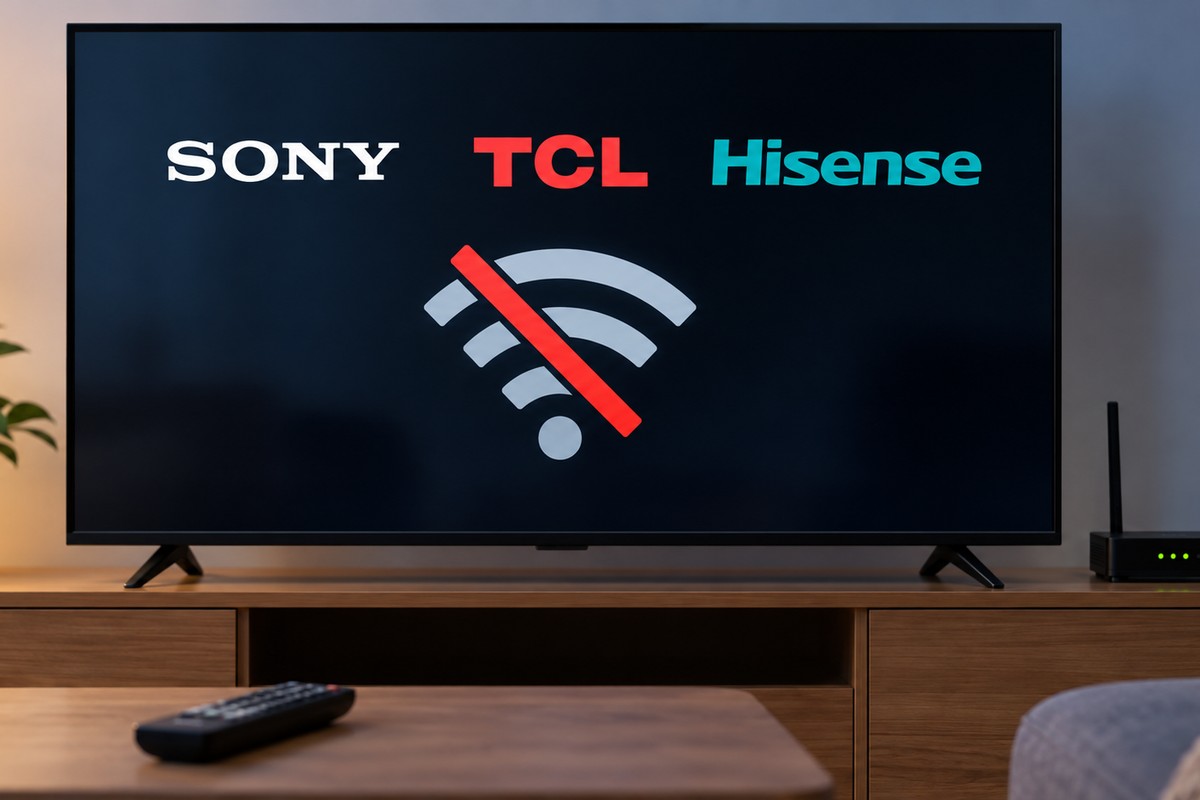

Not every WiFi problem fits neatly into one brand’s playbook, honestly. Own a Sony, TCL, Hisense, Apple TV, Google TV, or Philips set? There’s a decent chance none of the big-name troubleshooting guides quite match what you’re actually seeing on screen. This roundup covers all six in one place instead. Different platforms, different quirks, same goal: getting you back online without guessing. If your brand isn’t here, our general WiFi setup guide covers the basics that apply to just about anything with a screen.
Fixing a Sony TV That Won’t Connect to WiFi
Sony TVs running Google TV or Android TV have a bug that catches a lot of people completely off guard. It’s rarely what anyone suspects at first. If your Sony TV won’t connect to WiFi and everything else in the house is working fine, check the date and time before touching anything else. Here’s why: when the clock’s wrong, and this happens a lot on Bravia sets that sat unplugged in a box for months, things go sideways. Google TV’s security certificates fail to validate. The TV just silently refuses the WiFi handshake, no error message, nothing.
Go to Settings, then System, then Date & time, and make sure Automatic date & time is switched on. If the connection’s already broken and the clock looks wildly off, set it manually first just to break the loop. Switch back to automatic once you’re online. Reboot afterward so the certificate cache actually clears.
How to Connect a Sony TV to WiFi
Connecting a Sony TV to WiFi follows the standard Google TV or Android TV path, nothing unusual here. Head into Settings, then Network & Internet, then WiFi, and pick your network off the list.
How to connect a Sony TV to WiFi without much fuss usually just comes down to getting that date right first, per the section above. A wrong clock blocks everything before you even reach the password screen. If basic troubleshooting still doesn’t help, Sony’s network reset lives under Settings, then Network & Internet, then Reset connections. That wipes saved WiFi profiles clean without touching your apps or accounts, a much softer step than diving straight into a factory reset.
Hisense TV Won’t Connect to WiFi
Here’s something worth knowing upfront: Hisense actually ships three completely different smart TV platforms. VIDAA, Google TV, and Roku TV, depending entirely on the model you bought. Check which one you’re running before troubleshooting anything, since the menu paths genuinely don’t match across them.
VIDAA specifically has a short DHCP timeout, something like 60 seconds, so a slow router can fail authentication before it even finishes handing out an address. If your Hisense TV won’t connect to WiFi on a VIDAA model, try assigning a static IP instead. Go to Settings, then Network, then Network Configuration, then IP Settings, switch to Manual, and set an address sitting outside your router’s DHCP range.
Connecting a Hisense TV to WiFi Without a Remote
If you’re trying to figure out how to connect a Hisense TV to WiFi without a remote, start by identifying your platform. The fix genuinely depends on which one your set runs. VIDAA and Google TV models usually hide physical buttons on the TV itself, along the bottom bezel or somewhere on the side panel.
Roku-based Hisense models work completely differently, though. Since these run the Roku platform under the hood, the Roku mobile app can act as a full remote. That only works if your phone’s already sitting on the same network the TV last used. That’s the exact same circular catch that trips up standalone Roku TVs too. An Ethernet cable sidesteps the whole mess if your model happens to have a port.
TCL TV Not Connecting to WiFi
Most TCL sets run either Google TV or Roku TV. A TCL TV not connecting to WiFi usually comes down to the same handful of causes it always does. A wrong password, a stale saved network, or just a weak signal at wherever the TV happens to sit. Restart the router and TV together first, then try forgetting the network entirely and reconnecting from scratch.
If you’re trying to connect a TCL TV to WiFi without a remote and the Roku app simply can’t find it, don’t panic. There’s a workaround worth trying that most guides skip. TCL Roku models support plugging a USB keyboard or mouse directly into the TV, a trick the standalone Roku article doesn’t even cover. Once the TV detects it, you can navigate the full menu and complete WiFi setup without a phone or remote anywhere in the picture.
Apple TV Not Connecting to WiFi
If an Apple TV not connecting to WiFi happens to have an Ethernet cable plugged in, check that first, before anything else. Apple TV automatically prioritizes a wired connection the instant one’s detected. If that cable or the port has a problem, the TV won’t fall back to WiFi on its own. It’ll sit there confused instead. Unplug the Ethernet cable entirely to force it back onto wireless.
Router security mode causes a lot of these failures too, more than people expect. Apple TV doesn’t always play nicely with WPA3-only networks. Switching your router to WPA2, or a WPA2/WPA3 mixed mode, often resolves a connection that just refuses to complete. Beyond that, switching WiFi networks on Apple TV is genuinely worth knowing if you’ve changed routers or providers recently. Apple TV can stubbornly cling to old saved credentials.
Google TV Not Connecting to WiFi
Google TV devices, Chromecast included, run into a specific issue other platforms mostly avoid. It’s called AP isolation, sometimes labeled “Client Isolation” or “Guest Mode” depending on your router. This feature blocks devices on the same network from talking to each other directly. Sounds like a security plus, until it breaks your setup. Your phone needs to actually communicate with the Google TV device to finish pairing, and AP isolation stops that cold.
Check your router’s wireless settings and disable AP isolation if it’s switched on. Google TV devices also struggle with certain 5GHz DFS channels, specifically anything in the 52 through 140 range. If your TV randomly shows “no internet” on 5GHz for no obvious reason, that’s the culprit. Switching to a non-DFS channel or just dropping to 2.4GHz usually clears it right up.
How to Connect a Philips TV to WiFi
Philips is genuinely unusual here, since it ships TVs running five different operating systems depending on the region and model you happen to own. Titan OS, Google TV, Android TV, Saphi, and even older Linux-based sets are all still out there somewhere. Check Settings, then System, then About to confirm which one you actually have, since the WiFi menu path shifts depending on the platform underneath.
Across all of them, how to connect a Philips TV to WiFi generally boils down to the same three steps regardless. Settings, then Network, then Wireless, then picking your network off the list. One quirk worth flagging: Philips TVs running WEP encryption, an older and honestly pretty insecure standard at this point, only accept hexadecimal passwords. If your router still runs WEP for whatever reason, switch it to WPA2 entirely. It’s better for actual security, and it avoids this exact headache going forward.
Coverage problems show up across every single brand on this list eventually, no exceptions. No amount of menu digging fixes a signal that’s simply too weak to reach the TV in the first place. A mesh system beats a single router in most multi-room homes. That’s especially true if dead zones keep coming back no matter which brand you’re troubleshooting.
Honestly, most of what trips people up across these six brands has nothing to do with hardware failure. It’s a wrong clock, a hidden router setting, or a saved network stubbornly holding onto old credentials. Work through the basics for your specific platform first. Save the factory reset for that rare case when everything else has genuinely, actually failed.