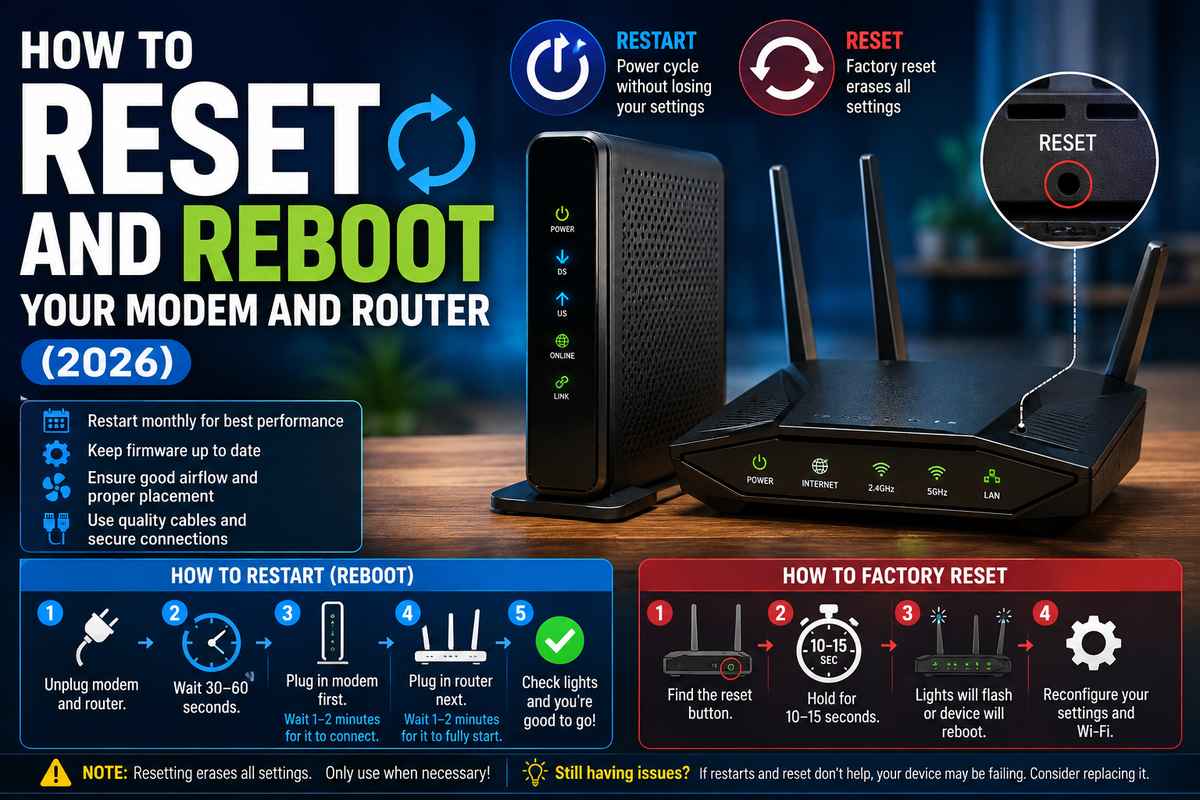

Half the troubleshooting advice out there says “reset your router” when they really mean restart it. That mix-up causes real headaches. A reset wipes your settings back to factory defaults, including your Wi-Fi name, password, and everything else. Restart just power cycles the box without touching any of that. Confuse the two and you either do way more work than needed, or you keep restarting when a factory reset was actually the fix. Here’s both done right, plus how to spot when your gear’s just dying instead.
Restart vs Reset: They’re Not the Same Thing
This mix-up wastes more time than almost any other router topic. Restart, reboot, same thing, just off then back on. Nothing gets erased. Your Wi-Fi name, password, and custom settings are all still there when it comes back up.
Reset is a whole different thing. Factory defaults, everything gone. Password, custom Wi-Fi name, any port forwarding or DNS you set up by hand, wiped. You’re starting over from scratch.
Day-to-day slowness almost never needs a reset. Save it for when you’re locked out of the admin panel, forgot the Wi-Fi password entirely, or you’ve restarted multiple times and the problem’s still there. Resetting over a simple slowdown is like reformatting your whole computer because one app crashed. Works, sure. But it costs you an afternoon you didn’t need to lose.
How to Properly Restart Your Modem and Router
Order matters, and skipping steps is where most people mess this up. Unplug both the modem and router. Wait a full 30 to 60 seconds, actually wait, plugging back in immediately doesn’t give the memory time to clear.
Modem back in first. Give it 1 to 2 minutes to fully reconnect before you touch the router, watch for the connection lights to settle down. Then plug in the router and give that another minute or two.
Do you have a combined modem-router unit, a gateway? Easier. Unplug the one device, wait 30 seconds, and plug it back in. Do this monthly even when nothing’s wrong, it’s maintenance, not just a fix. Memory leaks and small glitches pile up over weeks of nonstop uptime whether or not you’re noticing symptoms yet.
When You Actually Need a Factory Reset
Reset is the nuclear option. Keep it that way. Locked out of the admin dashboard, forgot the password entirely, selling the device and wanting your data off it, or restarted several times over several days with zero change, that’s when it’s actually called for.
Small recessed button on most routers. Hold it 10 to 15 seconds. Lights flash or the device reboots on its own, that’s your confirmation it worked. Afterward, you’ll need your ISP’s setup info again, and you’re rebuilding the network name and password from zero.
A reset won’t fix hardware that’s actually broken, worth knowing before you try it as a last resort. Restarts and a reset both fail? That’s failing equipment, not a software problem.
Common Router and Modem Problems Worth Knowing
Beyond basic slowness, a handful of issues show up regularly. Outdated firmware is a big one. Manufacturers push updates that patch bugs and security holes, and most people set up their router once and never touch it again.
Intermittent drops instead of steady slowness? That’s usually interference, overheating (give your router actual airflow, not a sealed cabinet), or hardware that’s just been running non-stop for years without a break.
Random reboots you didn’t trigger yourself usually mean a dying power supply or overheating internals, not something a software fix touches. And if the router checks out fine but download or upload speed still feels off, that’s a different problem entirely, covered in my download and upload speed guide.
How to Tell If Your Router or Modem Is Actually Dying
Not everything is fixable with a restart, and knowing when to stop troubleshooting and just start shopping can save you real frustration. Warning signs worth taking seriously: reboots you never triggered, connection lights stuck on red or orange instead of stable green, or a box that’s hot to the touch even sitting somewhere with decent airflow.
BroadbandNow’s guide on router maintenance suggests a monthly restart as baseline upkeep and flags equipment older than 4 to 5 years as a common culprit once the easy stuff’s been ruled out. Router past that age and problems keep coming back no matter how often you restart it? Replacing it beats another round of troubleshooting.
Modem not connecting at all, versus just running slow, points at either dead hardware or something on your ISP’s end. Check your account’s in good standing and there’s no local outage before writing off the hardware entirely.
Setting Up a New Modem or Router
Have you decided to replace it instead of keep troubleshooting? Setup’s easier than it looks. Modem connects to your wall’s coax or fiber line first, plug it into power, and wait for the connection lights to settle, first-time setup specifically can take several minutes.
The router connects to the modem via Ethernet, then powers it on. Most current routers walk you through Wi-Fi name and password setup via a companion app the first time. Reviews.org’s setup walkthrough covers the visual step-by-step if you want to see it laid out alongside what’s here.
If you’re combining a new router with an existing modem rather than replacing both, confirm compatibility with your ISP first, not every router works with every provider’s modem setup without some extra configuration.
Does Your Router Actually Affect Your Speed?
Yes, genuinely, and people underestimate this factor constantly. Your router doesn’t set your plan’s max speed, your modem and ISP handle that. But it decides how much of that speed actually makes it to your devices. Is your old router built for an older Wi-Fi standard? It’ll bottleneck a fast plan no matter what you’re paying for.
Already ruled out the router and speeds are still off elsewhere in your setup? My why is my internet so slow guide covers causes beyond just the modem and router.
Most consumer routers aren’t built to be opened or repaired, so when they’re genuinely broken, replacing beats trying to diagnose internal components yourself.