Nobody checks their SSD health. Okay, some people do. I do, sort of, when I remember. But most people buy a drive, dump Windows and their Steam library on it, and never give it another thought until the day something breaks. With SSDs, the day something breaks often coincides with the day everything on the drive is lost.
At least hard drives gave you some warning. They’d click, they’d grind, files would take forever to open, and you had time to panic productively. An SSD doesn’t do any of that. It works right up until it doesn’t. Which sounds dramatic, and I guess it is, but it’s also just how the technology fails.
The frustrating part is that your SSD already knows how it’s doing. It keeps score on itself constantly, every hour it runs. You just have to bother looking, and looking takes maybe five minutes with tools that cost nothing.
So that’s what this is. How to check SSD health using what’s already in Windows, what to download if you want the full picture, what the numbers mean, and the lifespan question, which people get wrong constantly because half the internet is still recycling SSD fears from 2012.
How SSDs Fail (And Why It’s Different From Hard Drives)
Bear with me for a minute of background, because it changes how you should think about all of this.
A hard drive is a machine. Physical platters spinning at thousands of RPM, a little arm flying around reading them. Machines wear out gradually and noisily. You usually get weeks of warning signs, sometimes months.
An SSD has no moving anything. Your data sits in NAND flash cells, and each cell can only be written so many times before it gets unreliable. The drive’s controller knows this, so it spreads writes across all the cells as evenly as it can. Wear leveling, it’s called, and it works better than it has any right to.
But the failure mode is the problem. When the controller chip itself gives out, the drive doesn’t slow down or complain first. It just stops existing. Your PC boots one morning and there’s no drive there anymore, and your data is trapped inside a chip nothing can talk to. I’ve had this happen once, years ago, on a drive that showed zero symptoms the night before. Once was enough.
That’s the real argument for checking solid-state drive health on some kind of schedule. Not because the symptoms are subtle. Because there might not be symptoms.
Oh, and one detail that surprises people: reading doesn’t wear an SSD out. Only writes do. A drive stuffed with games you never reinstall is barely aging at all.
What SMART Data Actually Tells You
Everything in this article, every tool and every method, is really just a different window into the same thing: SMART data. “Self-Monitoring, Analysis, and Reporting Technology” is the full name, but it is rarely used.
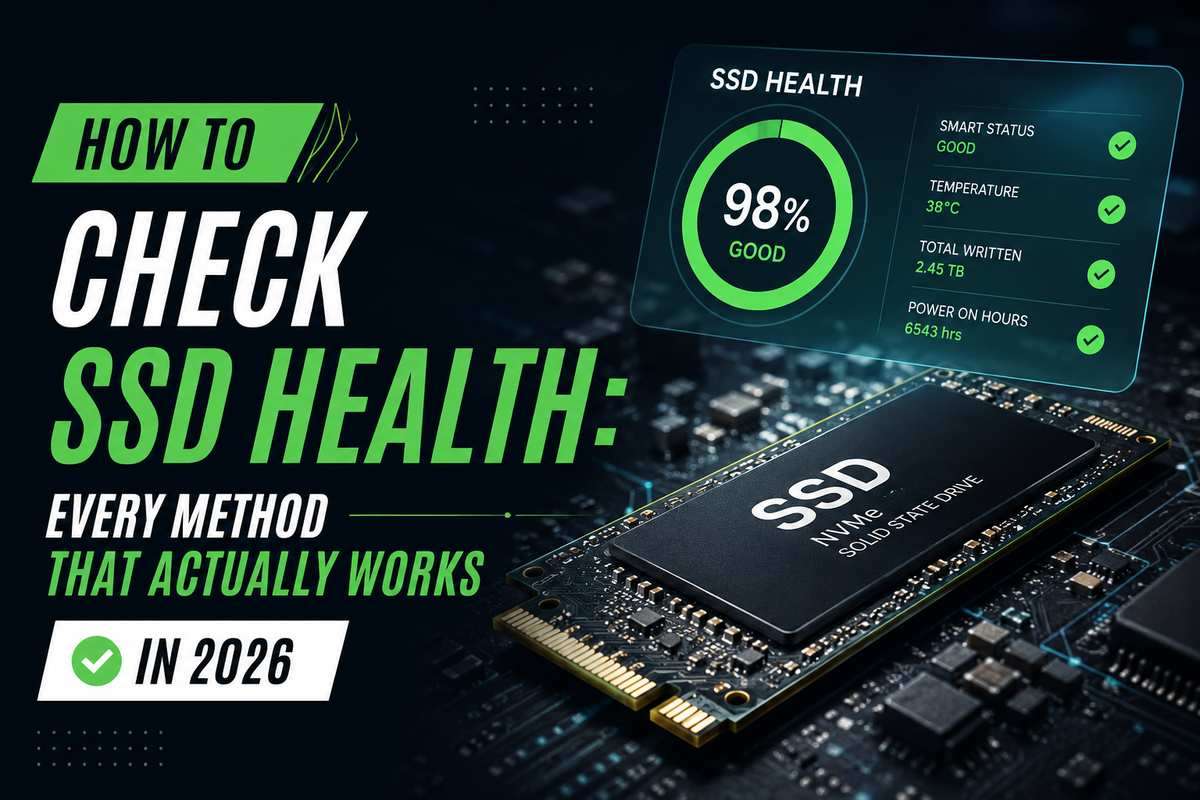
Your drive logs its own vitals constantly. Temperature, hours powered on, how much has been written to it, error counts, and how many spare cells are left in reserve. Dozens of these. Health tools don’t do anything clever, they just read this ledger and color-code it for you.
You may have run into SMART before without knowing it. That “smart hard disk error” some PCs throw at boot? That’s this system, except by the time it shows up at boot it’s not an early warning anymore, it’s the drive announcing its own funeral. If you ever see that message, close this tab and go back up your files. I’m serious. Do the reading after.
For an SSD specifically, most of the SMART table is noise. The values I actually look at:
Percentage Used, or Remaining Life. Different tools label it differently, but it’s the same idea. How much of the drive’s rated endurance has been used? This figure is the one number to remember if you only remember one.
Total Host Writes. Lifetime data written, in gigabytes or terabytes. This is useful mainly for the lifespan calculations later.
Available Spare. SSDs ship with hidden reserve cells that quietly replace worn ones. When the reserve runs low, the drive is on borrowed time.
Media and Data Integrity Errors. Should be zero. A number that keeps growing is the drive telling you something, and it’s not good news.
How to Check SSD Health With Windows Built-In Tools
Windows can do a basic health check without installing a single thing. Not a detailed one, but honestly a pass/fail answer is enough for a monthly glance.
The Command Line Method
The fastest way to test the health of SSD drives on any Windows machine, and I mean any, is this, which works on ancient installs too:
- Press Windows + X and open Terminal (Admin) or PowerShell (Admin)
- Type
wmic diskdrive get status,modeland hit Enter - Look at what comes back next to each drive
“OK” means SMART isn’t worried. “Pred Fail” means the drive is literally predicting its failure, and your job for the rest of the day just became backing things up. Crude test, sure. But crude and instant has its place.
If you want a step up from that without leaving PowerShell, Get-PhysicalDisk spits out health status, wear percentage, and operational status for every drive at once. Handy.
The Windows 11 Drive Health Page
Windows 11 actually has a real drive health monitor now. Microsoft just buried it about six menus deep and, weirdly, made it NVMe-only. SATA SSDs and hard drives are invisible to it, which Hone’s guide confirms, and no, I don’t know what the reasoning was there either.
Settings > System > Storage > Advanced storage settings > Disks & volumes. Pick your SSD and hit Properties, then scroll to Drive health. You get the estimated remaining life, available spare, and temperature. If this page ever shows you a warning like “Reliability is degraded,” believe it. Windows setting that flag is not a false alarm situation.
CrystalDiskInfo: The Best Free SSD Health Check Software
Install one tool from this whole article and make it this one. CrystalDiskInfo has been the default answer to “how do I check my drive?” for something like fifteen years, it’s free with no paid upsell hiding anywhere, and PCWorld once called it a godsend for SSD owners. Fair description.
Get it from crystalmark.info and nowhere else. The third-party download sites wrap it in garbage.
There’s no learning curve to speak of. Open it, and the Health Status box tells you the story: Good in blue with a percentage, Caution in yellow, and Bad in red. Temperature, power-on hours, and total writes are right there too, with the full SMART table underneath if you feel like digging.
What the colors mean in practice, from someone who has seen all three:
Blue is good. Nothing to do. Look again next month.
Yellow, Caution. Back up today. Not this weekend, today. Here’s the uncomfortable truth about yellow: some drives sit for a year, some die by Friday, and there’s no way to know which kind you’ve got.
Red, Bad. The drive is failing right now. Rescue what you can and order a replacement.
One thing I’ll save you some confusion on. Ignore the Current and Worst columns in the SMART table. Manufacturers scale those numbers however they feel like, and comparing them across brands is meaningless. The Raw Values column has the honest numbers. Zero reallocated sectors, zero media errors, that’s what healthy looks like.
Works on SATA, NVMe, hard drives, and most USB externals. Basically everything.
Manufacturer Tools: Samsung Magician, WD Dashboard, and Friends
Worth having alongside CrystalDiskInfo, not instead of it: whatever official utility matches your drive’s brand. Samsung Magician if you own Samsung, WD Dashboard, Crucial Storage Executive, Kingston SSD Manager; and SeaTools for Seagate. Same SMART data underneath, but interpreted the way the company that built the drive intended, which occasionally matters when a generic tool misreads a vendor-specific attribute.
The actual reason to bother, though, is firmware. These utilities update it, and firmware updates fix real problems. Bugs that degrade performance, and in a few infamous cases, kill drives early. Nobody updates SSD firmware. Nobody. Be the exception, it takes ten minutes.
Some of them go further than passive monitoring too. SeaTools runs proper diagnostic self-tests, pass or fail, and Tom’s Hardware walks through several of these tools if you want the comparison. Its short test takes a couple of minutes and works on non-Seagate drives as well, which is generous of them, I suppose.
My routine, for what it’s worth: manufacturer tool once when I set up a drive, firmware update if there is one, then CrystalDiskInfo forever after. The official apps tend to be bloated and I don’t love keeping five of them installed.
How to Check What SSD You Have
Small detour. You can’t grab the right manufacturer tool if you don’t know what’s in your machine, and plenty of people don’t, especially with prebuilts and laptops. So, how do I check what SSD I have, three ways, fastest first:
Task Manager. Ctrl + Shift + Esc, Performance tab, and click each disk. The model name is right at the top.
Device Manager, under Disk drives. Same info, slightly more clicking.
Or CrystalDiskInfo again, which shows model, firmware version, and the interface it’s running on, which is more than Windows will tell you anywhere.
Model number in hand, search it. You’ll get the brand, the TBW rating, and which utility to download, usually in the first result.
How to Know If an SSD Works or Is Failing
Different question now. Not long-term monitoring, but the immediate one: is this drive sufficient? Maybe it’s used, maybe it’s been in a drawer for three years, or maybe your PC has started doing something weird. How to know if an SSD works comes up a lot and the answer has two halves.
If the drive shows up in Windows, watch for these:
Files that refuse to open or copy. Usually bad NAND blocks underneath.
The drive suddenly becoming read-only. This one’s actually deliberate. Many SSDs lock themselves to read-only as a dying gesture, letting you evacuate data while refusing new writes. Grim, but thoughtful engineering.
Freezes and blue screens that Event Viewer traces back to disk errors.
Speeding, falling off a cliff for no reason. A nearly full SSD slowing down a bit is normal. A drive that wrote at 3 GB/s last month is now crawling at 80 MB/s, which is abnormal.
And the one that genuinely worries me: the drive vanishing and coming back after a reboot. Intermittent disappearance points at the controller, and controller failure is the total, unrecoverable kind.
If the drive doesn’t show up at all, don’t call it dead yet. Check Disk Management first, right-click Start to find it, because a drive with no partition is invisible in File Explorer while being perfectly fine. Nothing in Disk Management or the BIOS either? Different cable, different port, different M.2 slot. You would not believe how many “dead” drives are actually a loose connection. Then, and only then, you can start mourning.
SSD Lifespan: What TBW Really Means
The ssd life span conversation is overdue for some honesty, because the fear here outlived the facts by about a decade.
Every drive ships with a TBW rating. Terabytes written, the total data the manufacturer guarantees before the NAND is worn past spec. Consumer drives these days run anywhere from 150TB up past 600 TB; bigger drives higher.
Now the math, and that is the whole point. A typical user writes maybe 10 to 35GB a day. Call it 20. This is against a 600 TBW drive that has been in use for over 80 years. Eighty. Even someone hammering a drive with 100GB of video scratch files daily gets 16 years out of it. Whatever early SSDs were like, wear-out stopped being a normal-person problem a long time ago.
Funny thing is, writes might not even be what kills your drive. There was a study Google ran with the University of Toronto, multi-year, real drives in real datacenters, and the finding was that age predicted failure better than write volume did. Ontrack’s breakdown covers it along with the general estimates, which land around 5 to 10 years of solid-state drive life, frequently more.
What actually does shorten ssd drive lifespan, then? Heat, mostly. Sustained high temperatures chew through cells faster than writing ever will. And running the drive packed completely full, since wear leveling needs empty blocks to shuffle data into. So, leave 10 or 20 percent free, stick the heatsink on your NVMe drive if your board came with one, and the drive will probably outlive your interest in the rest of the PC.
It’s worth stretching a drive’s life right now, frankly. NAND is caught up in the same memory price crunch that’s been hammering RAM, something I got into in the DDR5 vs DDR4 comparison, so replacement drives cost more than they did a year ago. Taking care of the one you have is the most budget-friendly option.
Checking External Drives, Enclosures, and Old HDDs
Some side cases arise because these questions come up every single time.
External SSDs. Same process, mostly. Plug in, open CrystalDiskInfo, and read the result. Except some cheap USB enclosures don’t pass SMART data through at all, so the drive shows files fine but reports nothing about health. Maddening. The fix is either connecting the drive internally for the check or getting a better ssd drive reader. A decent solid-state drive reader with a proper bridge chip passes SMART through cleanly, and that alone justifies spending a few dollars more than the bargain-bin option.
Driver hunting. When an external drive acts up, people go searching for a driver for external hard drive downloads, and I want to gently stop you there. Windows handles USB storage natively. There is no magic driver. Run Windows Update, reseat the cable, and try another port. The sketchy driver sites are selling you malware with extra steps.
Old mechanical drives. Still around, still worth checking. An hdd scan uses the same tools, CrystalDiskInfo reads HDD SMART fine, and something like HDDScan or SeaTools can surface-test every sector if you want to be thorough. On hard drives the numbers to watch are reallocated sectors and pending sectors. Climbing counts mean active decay.
And a warning about repair software, because this market is full of junk. Search hard drive repair tool and you drown in disk doctor programs promising to fix a failing drive. chkdsk fixing file system errors, that’s real and useful. But no hard drive repair tools on earth fix worn NAND or physical platter damage, and aggressive scanning can finish off a drive that was barely hanging on. Failing hardware gets replaced. That’s it, that’s the whole option list.
What to Do If Your SSD Is Failing
Something above came back yellow or worse. Order of operations, and the order is the point:
Back up before anything else. Before the second opinion, before more tests. Every operation on a failing drive is a coin flip you don’t need to take with your files still on it.
Then get the second opinion. Run the manufacturer’s tool next to CrystalDiskInfo. Once in a while a warning is a reporting quirk rather than actual damage. Once in a while. I still wouldn’t leave data sitting on it.
You might also want to check the warranty. SSDs carry 3 to 5-year warranties tied to the TBW rating, and if you’re inside both, that’s a free replacement most people never claim.
Then replace it and move on. Don’t nurse a dying drive, storage isn’t worth the gamble, even at today’s memory prices, which, sure, are painful and probably not improving soon. Any current NVMe drive will embarrass an old worn SATA SSD anyway. And fast storage isn’t optional for gaming anymore. GTA 6 on PC will demand a 150GB+ SSD install as a hard requirement, and it won’t be the last game to do that.
If it’s your boot drive, clone it while it still boots. A working clone is a 30-minute job. A dead source drive is your whole weekend.
Frequently Asked Questions
For NVMe drives, the built-in Drive health page is under Settings > System > Storage > Advanced storage settings > Disks & volumes. Or run wmic diskdrive get status in an admin terminal for a quick pass/fail. CrystalDiskInfo gives you the full picture for free.
Above 90 percent is great, and drives work fine even well below that. I’d start planning a replacement under 50 percent and start shopping under 20.
5 to 10 years for most consumer drives in normal use, often longer. Age and heat end up mattering more than how much you write.
Signs of a failing SSD include files that won’t open, sudden slowdowns, blue screens related to disk errors, the drive becoming read-only, or the drive disappearing intermittently. Any SMART status apart from Good also counts.
No. Software fixes file system errors, not worn NAND or a dead controller. Back up and replace.
Not at all. SMART reads are passive, and even the self-tests in manufacturer tools are non-destructive.
Final Thoughts
In a nutshell: CrystalDiskInfo installed, a glance once a month, and yellow means back up today. That’s the whole discipline. Less effort than most things you already do monthly without thinking.
SSDs earned the reliability reputation, I’m not disputing that. But reliable and immortal are different words. The drive keeps honest records about itself around the clock. Reading them occasionally is the cheapest insurance in all of computing.
And back up regardless. Monitoring catches most failures. Most isn’t all.