
Most people never touch their firewall settings. The router shows up, gets plugged in, and that’s the last anyone thinks about it. Until something breaks. I get it. Firewalls have a reputation for being intimidating. They are full of menus that look like they belong on a server rack, not a living room shelf.
That reputation isn’t entirely fair. Once you understand what a firewall device actually does, the rest is mostly just about clicking through a few settings correctly. Let’s walk through it properly.
What Is a Firewall, Actually?
A firewall device decides what traffic gets in and out of your network. Think of your internet connection as a door. Without a firewall, that door stays wide open. Anything can walk through that door, whether it’s good or bad.
Most home routers come with a basic firewall built in, usually enabled by default. That covers the fundamentals. A dedicated firewall device goes further. It adds deeper traffic inspection, more granular rules, and visibility into exactly what each device is doing. Whether you need that extra layer depends on how much you’re protecting and how comfortable you are managing it. That same logic shows up in security software too, where an application control engine handles a similar decide-what’s-allowed job, just for programs instead of network traffic.
Where a Firewall Router Fits in Your Setup
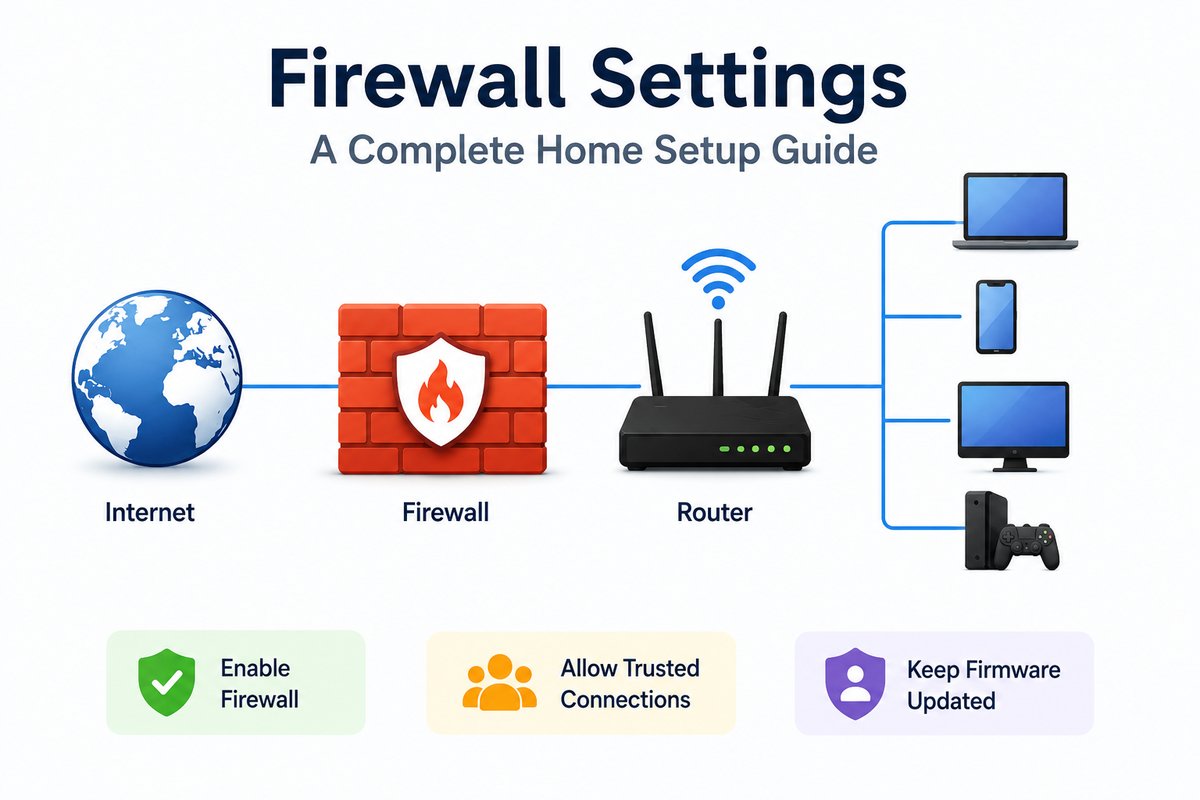
A firewall router usually sits in one specific spot: between your modem and everything else. The modem connects to your ISP. The firewall router connects to the modem on one side. On the other side, your devices or your regular Wi-Fi router connect.
That placement matters. If someone asks what you connect your firewall to, the answer is almost always the same chain. Modem, then firewall, then router, and everything downstream gets the protection. If you place it anywhere else in the chain, you will create a gap in protection.
Forbes recently covered how a firewall router sitting right after the modem gives every connected device the same layer of protection, instead of relying on what the router alone provides.
How to Adjust Your Firewall Settings
Getting Into the Dashboard
Most firewall settings live behind a web dashboard or a phone app. You’ll typically find the login address printed on a sticker on the unit or in the quick-start guide. The default login is almost never something you should keep long-term.
Changing What Actually Matters
Once you’re in, change the admin password first. That single step blocks the most common attack vector: someone finding your default credentials online and logging in remotely. From there, enable logging. Please review the default rule set rather than assuming it is already tuned for your household.
Don’t feel like you need to touch every advanced option on day one. A firewall configured with the basics done right beats one that’s half-configured with fifteen custom rules nobody remembers setting.
Types of Hardware Appliances for Network Traffic Filtering
Not every appliance in this category works the same way. The top hardware appliances for network traffic filtering 2025 buyers looked at fell into three rough categories, and that split still holds up.
Router-firewall combos handle both jobs in a single box. That’s the simplest option for most homes. Standalone firewall appliances sit separately from your router and usually offer more granular control. Unified threat management boxes bundle a firewall with antivirus scanning, intrusion prevention, and content filtering in one device, which suits people who’d rather manage one dashboard than five.
Hardware appliances for filtering network data transfers focus specifically on that middle layer. They inspect what’s moving across your connection, rather than just blocking known malicious IP addresses. That distinction is worth knowing before you buy, since some budget devices only do the latter.
What Does a Firewall Actually Look Like?
If you’re picturing a firewall as some kind of glowing server tower, the reality is more modest. A typical picture firewall for home use looks like a small box. They are often not much bigger than a deck of cards.
There’s no fan noise, no blinking server rack aesthetic. Most units have a couple of Ethernet ports on the back, a power connector, and one or two status lights on the front. They’re designed to sit quietly on a shelf, doing their job without demanding attention. If a listing looks like equipment for an enterprise data center, it’s probably overkill for a home setup.
Budget Picks: Wired Firewalls Under $250
You don’t need to spend a fortune to get real protection. A tiny wired firewall under $250 can cover most home networks without the enterprise price tag.
The Firewalla Purple SE lands right around this price point and handles gigabit speeds without breaking a sweat. GL.iNet’s Flint series offers solid firewall customization for a similar price. It targets people who are comfortable with a bit more manual configuration. TP-Link’s Omada line also has entry-level options that undercut $250 while still supporting VLANs and basic intrusion prevention.
TechRadar’s router testing looks specifically at how budget and mid-range devices handle firewall performance under real traffic loads, not just spec sheet claims. It’s worth checking before you buy anything in this range.
Setting Up a Home Network Firewall the Right Way
A home network firewall works best when it’s set up with your actual household in mind, not left on factory defaults. Start by mapping what’s actually connected: laptops, phones, smart TVs, cameras, and thermostats. That list usually turns out longer than people expect.
From there, a firewall for home network use should separate guest devices and IoT gadgets from your primary devices, if the option exists. That single step limits how far a compromised smart plug or camera can reach if it’s ever breached. It’s also worth revisiting your setup entirely with a full comparison of hardware firewalls if you’re thinking about upgrading beyond a basic router-firewall combo.
Common Firewalling Mistakes to Avoid
A few mistakes show up constantly when you start reading through home network forums and support threads.
- Leaving default credentials in place. Still the single most common way home devices are compromised. Takes thirty seconds to resolve
- Never checking the logs. Most firewalling happens silently, which is a positive thing, but problems can go unnoticed for months if nobody looks.
- Disabling security features to fix a connection issue. It’s tempting to flip something off when an app won’t connect. Track down the specific rule causing the conflict instead of turning everything off.
- Skipping firmware updates. An unpatched firewall is protecting you from yesterday’s threats, not today’s.
My Take
A firewall for home use doesn’t need to be complicated to be effective. The best firewalls for home setups I’ve seen aren’t the ones with the most features. They’re the ones actually configured correctly and left running instead of sitting half set up in a drawer.
If you’ve been putting this off, start small. Change the default password, turn on logging, and separate your IoT devices from everything else. That alone puts you ahead of most home networks out there. The rest can wait until you’re ready for it.