
My cousin spent around $1,400 building a gaming PC last year. The system is equipped with an RTX 4070 graphics card, a Ryzen 7 7700X processor, and 32GB of DDR5 RAM. Solid build. On paper, it should have been more than capable of handling everything he plays. Instead, he was getting frame drops in Apex Legends, random stutters in Elden Ring, and his 144Hz monitor was, for reasons he could not explain, feeling no different from the 60Hz one it replaced.
He called me convinced he needed a new GPU. He did not. What he needed was about ninety minutes, a few settings changes, and someone to explain why his PC was behaving like it was half its actual capability.
That situation is far more common than people admit. A lot of gaming PC performance problems have nothing to do with the hardware. The CPU and GPU get all the attention. The configuration, the drivers, the Windows settings, and the display setup all ignore the changes. And then people wonder why their expensive machine does not feel expensive.
This guide covers all of it. Not just the obvious stuff like updating drivers, but how to actually optimize your gaming PC for specific scenarios: ray tracing, 144Hz, competitive gaming, streaming, 4K, 8K, and cloud gaming. Each of those has its logic and its own priorities, and generic advice usually misses most of them.
Before Touching Anything, Find Out What Is Actually Wrong
Most people skip this step. They find an optimization guide, apply everything in it, restart their PC, and then have no idea which of the twelve things they changed actually helped. That is a bad way to approach the situation.
Open Task Manager while your game is running. Not before the game. Press Ctrl + Shift + Esc, then go to the Performance tab. Watch what your CPU, GPU, RAM, and disk are doing when the performance issues happen.
- If your GPU is at 99% and your CPU has headroom, the GPU is your bottleneck, and most of your gains will come from reducing the rendering load.
- If your CPU is maxed and your GPU is sitting at 60%, you have a CPU bottleneck, and no amount of lowering graphics settings will meaningfully fix it.
- If your RAM is at 95% or higher, your system is probably spilling into the page file, which is painfully slow and causes exactly the kind of stuttering that feels like a GPU problem but is not.
Knowing your bottleneck changes which parts of this guide you should prioritize. Without that knowledge, you are guessing.
The Stuff That Always Matters, Regardless of What You Are Playing
Some optimizations are universal. They apply whether you are playing a competitive shooter, a ray-traced open world game, or something you are streaming to an audience of twelve people. Do these first, before anything else.
GPU drivers
Not just any driver. The latest one refers to either the latest game-ready driver from NVIDIA or the latest WHQL release from AMD. These are not cosmetic updates. NVIDIA and AMD both ship game-specific optimizations in driver releases, sometimes significant ones. There have been driver updates that improved performance in specific titles by 10 to 20% overnight, with no hardware changes. If you have not updated in six months, you may be leaving real performance on the table.
Windows Game Mode
Go to Settings, search for Game Mode, and turn it on. What it actually does is instruct Windows to reduce the priority of background tasks when a game is running and give the game’s processes preferential access to CPU and GPU resources. It does not perform miracles. It does consistently help, particularly on systems that have a lot of background software running.
Power plan
Windows defaults to Balanced, which actively throttles your CPU to save power. That is fine when you are writing an email. It is not fine when you are gaming. Switch to High Performance in the Control Panel under Power Options. If you are on a gaming laptop, your manufacturer probably has its own performance mode. Use that instead; it is usually more aggressive.
Close what you are not using
This approach sounds basic because it is. It is also the one thing people consistently actually fail to do. A browser with ten tabs open, Discord, a cloud backup service running in the background, and Windows Update quietly doing something—that combination can consume 6 GB of RAM and meaningful CPU cycles before your game even launches. On 16GB of RAM, that is not a small difference. It matters. This gets even more relevant if you’re running something like a heavily modded Stardew Valley save. Our Stardew Valley mods guide covers which add-ons are worth the extra overhead and which ones aren’t.
Clean driver installs
This is a topic that most guides tend to gloss over. When you update GPU drivers repeatedly without doing a clean install, old driver files accumulate and can cause instability, performance issues, and crashes that are genuinely difficult to diagnose. Use Display Driver Uninstaller, boot into safe mode, wipe everything, and then install fresh. Do this process every few driver versions at a minimum.
Your 144Hz Monitor Is Probably Not Running at 144Hz and Here Is Why
This issue is genuinely one of the most common and most fixable problems in PC gaming. Someone buys a 144Hz monitor expecting to feel an immediate difference. They connect it, it appears identical to their previous one, and they conclude that either 144Hz is overrated or their PC is unable to support it.
Usually the answer is simpler than either of those. The monitor is running at 60Hz because nobody told Windows to change it.
Right-click your desktop. Go to Display Settings. Scroll down to Advanced Display Settings. Look at what refresh rate is listed. If it says 60Hz on a 144Hz monitor, that is the issue. Change it to the highest available option.
Then open your GPU control panel. In NVIDIA Control Panel, go to Display and then Change Resolution. Please ensure that the refresh rate displayed there matches the setting you configured in Windows. These two places sometimes disagree with each other, and when they do, the behavior is inconsistent and confusing. Both need to match.
Inside whatever game you are playing, find the frame rate cap setting. Many games ship with a 60 FPS cap by default, apparently assuming most people are on 60Hz displays. Remove that cap. Also find the V-Sync setting and turn it off. V-Sync caps your frame rate to your monitor’s refresh rate and adds input lag in the process. It solves screen tearing by creating a different problem. On a 144Hz monitor, the better solution is G-Sync if you have NVIDIA hardware, or FreeSync if you have AMD. These sync the GPU’s output dynamically with the monitor’s refresh rate, eliminating tearing without the lag penalty.
One more thing that is easy to miss: to genuinely feel the difference of 144Hz, your game needs to actually be running at or above 144 FPS consistently. A monitor that is set to 144Hz but receiving 80 FPS from your GPU is not a 144Hz gaming experience. It provides an 80 FPS gaming experience on a monitor that could theoretically support higher frame rates. Get your frame rate up, and then the high refresh rate has something to work with.
Ray Tracing: Why It Tanks Your FPS and What to Actually Do About It
The frustration most people have with ray tracing follows a predictable pattern. They see it in a game’s settings, turn it on, watch their frame rate fall off a cliff, and turn it back off. Then they either decide ray tracing is not worth it or that their GPU lacks the power for it.
In most cases, neither of those conclusions is correct. The problem is that they enabled ray tracing without enabling the technology that makes ray tracing viable on consumer hardware.
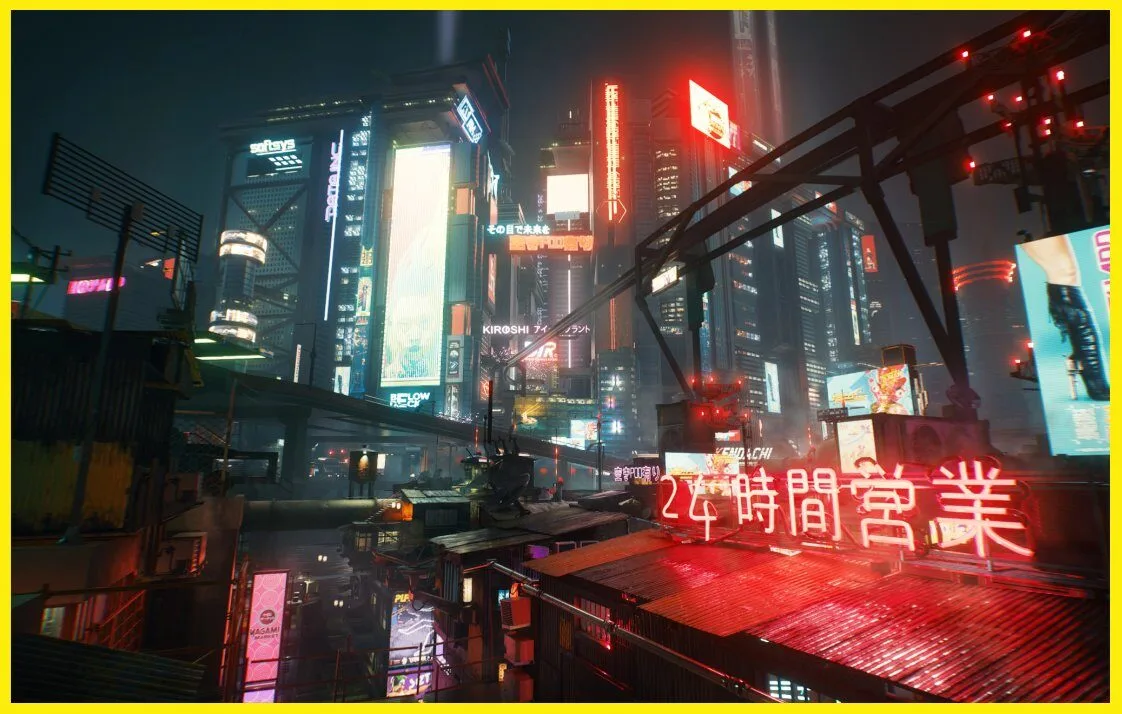
Ray tracing simulates how light physically behaves. It bounces off the surface and casts accurate shadows. It reflects correctly and looks genuinely different from traditional rendering in the games that do it well, like Alan Wake 2, Cyberpunk 2077, and Indiana Jones and the Great Circle. The reason it is so demanding is that real-time light simulation at game resolution and frame rates is an enormous computational task. Your GPU was not originally designed for it. The RT cores added to NVIDIA’s RTX cards and AMD’s RDNA architecture handle it, but they need help.
That help is upscaling. DLSS 4 on NVIDIA hardware, FSR 4 on AMD, and XeSS on Intel all work by rendering the game at a lower resolution internally and reconstructing it to your display resolution using AI or spatial reconstruction algorithms. The image looks very close to native. The performance difference is enormous. DLSS 4 with multi-frame generation on RTX 40 and 50 series cards can essentially manufacture additional frames between rendered ones. The result is that a card that would run Cyberpunk 2077 with ray tracing overdrive at 25 FPS natively can hit 80 FPS or more with DLSS 4 and frame generation active.
The practical setup is as follows: enable ray tracing at medium or high, not ultra. Ultra ray tracing settings in most games offer diminishing visual returns for a massive performance cost. Enable DLSS in quality mode or balanced if you need more headroom. Enable Frame Generation if your card supports it. At that combination, ray tracing becomes a realistic option on mid-range and high-end hardware alike.
Also worth saying: ray tracing is not equally impactful in every game. In titles where developers bolted it on as a checkbox feature, the visual difference is small and the performance cost is real. In games built around it from the ground up, the visual difference is substantial. The push toward photorealistic graphics is one of the bigger shifts the industry has made recently. If you want context on how dramatically things have changed, this breakdown is worth a read. Know which category the game you are playing falls into before deciding whether it is worth enabling.
Competitive Gaming Optimization Is a Completely Different Goal
Everything changes when the objective is winning rather than visual quality. Competitive gaming optimization is not about making your game look better. It is about reducing every millisecond of delay between your inputs and the game’s response to them. That is it. That is the whole goal.
This means some things that sound counterintuitive become correct.
Turn off V-Sync. This principle applies not only to the game settings in your GPU control panel but also to other areas. V-Sync introduces a consistent input lag penalty that serious competitive players cannot accept. You can manage screen tearing in a competitive context by either running your frame rate high enough to make tearing rare or by using G-Sync or FreeSync with a frame rate cap set just below your monitor’s maximum.
Lower your graphics settings aggressively. Shadows off or on low. Motion blur off, always. Depth of field off. Set anti-aliasing to minimal or off if the game allows it. The purpose of doing this is not to make the game look worse for the sake of it. The purpose is to push your frame rate as high as possible. A 240Hz monitor operating with a consistent 300 FPS input has genuinely less input lag than the same monitor receiving 100 FPS. The excess frames give the GPU a buffer that reduces latency in ways that are measurable.
Enable NVIDIA Reflex if you play on NVIDIA hardware and the game supports it. Valorant, Apex Legends, Fortnite, Call of Duty, and Rainbow Six Siege all support it. Set it to On + Boost. Independent testing has shown Reflex can reduce system latency by 30 to 50% in supported configurations. That is not a small number. It is the single biggest software-level latency improvement available to most competitive players.
Turn off mouse acceleration. This setting hides in Windows under Mouse Settings, Additional Mouse Settings, and Pointer Options; it is called “Enhance pointer precision.” Disable it. Mouse acceleration changes the relationship between how far you physically move your mouse and how far the cursor moves on screen based on how fast you are moving. For gaming, especially aiming, you want that relationship to be completely consistent and predictable. Acceleration breaks that.
Run your game in exclusive full screen, not in borderless windowed mode. Borderless windowed mode routes through Windows’ Desktop Window Manager, which adds a small but real latency penalty. Exclusive fullscreen bypasses it entirely.
Streaming While Gaming Without Ruining Either One
Streaming and gaming simultaneously is one of the more demanding things you can ask a PC to do. You are running a game and encoding a video feed in real time and uploading it. All of them are on the same machine. The most common outcome for people who do not set the encoder up correctly is that their game starts stuttering the moment they go live, and their stream quality is poor regardless.
The single most important decision here is your encoder. Use NVENC if you are on NVIDIA. Use VCE if you are on AMD. These are hardware encoders built into the GPU that handle video encoding without touching your CPU. The difference in CPU overhead between hardware encoding and software encoding (x264) is enormous. x264 at high-quality presets can consume 40 to 60% of your CPU. NVENC consumes almost nothing from your CPU because it runs on dedicated silicon on the GPU.
The quality difference between NVENC and x264 used to be significant. It is much smaller now. NVENC on RTX 30-series and newer hardware produces stream quality that most viewers cannot distinguish from x264 at the same bitrate. There is no good reason to be destroying your gaming performance for marginal quality gains when your audience probably cannot tell the difference.
Match your output settings to what your internet connection can actually handle. Most home connections support 6,000 to 8,000 kbps uploads comfortably. At that bitrate, 1080p60 looks excellent. Pushing to 1440p at the same bitrate actually looks worse than 1080p because you are spreading the same data budget across more pixels. Your stream looks softer, not sharper. Please be aware of your upload limit before adjusting these settings.
Use Ethernet. This option is not a preference. Packet loss and jitter from Wi-Fi show up as stream drops and disconnections. A stable wired connection eliminates that entire category of problem.
4K Gaming: What Your GPU Can and Cannot Actually Do
4K gaming has a reputation problem. People assume that if their GPU is powerful enough to run games well at 1440p, it will handle 4K with some adjustments. That assumption is usually wrong by a wider margin than expected.
The pixel count jump from 1440p to 4K is not a modest step. Going from 2560×1440 to 3840×2160 means your GPU is rendering more than double the pixels per frame. A card that runs Hogwarts Legacy at 90 FPS at max settings in 1440p might struggle to maintain 45 FPS at native 4K with the same settings. The hardware requirements are genuinely steep.
There are two honest paths here depending on what your GPU is.
If you have a high-end graphics card, such as an RTX 4080 Super, RTX 5080, RX 9070 XT, or a better model, you can typically achieve native 4K resolution at high settings in most titles, maintaining 60 FPS. Not always maxed. In the most demanding games, the frame rate is not always 60 FPS. But it is manageable with per-game settings adjustments. Shadows, ambient occlusion, and volumetric effects are the most expensive settings at 4K. Dropping those from ultra to high typically recovers a significant frame rate, with changes that are barely visible in motion.
If you have a mid-range card or want 4K at higher frame rates, use DLSS Quality mode or FSR Quality mode. Rendering internally at around 1440p and reconstructing to 4K produces results that are genuinely difficult to distinguish from native in motion. Your frame rate will be dramatically higher. This is not a compromise in any meaningful sense. It is how 4K gaming was always intended to work on hardware below the flagship tier.
Also check your cable. HDMI 2.1 or DisplayPort 1.4 is required to carry 4K at 60Hz or above. Older cables have insufficient bandwidth and result in the display dropping to a lower refresh rate or resolution without being particularly obvious about it.
8K Gaming in 2026: Honest Expectations
Here is the thing about 8K gaming that most articles will not say directly. For the vast majority of people, true native 8K gaming at playable frame rates is not currently realistic without hardware that costs several thousand dollars and is available in very limited quantities. We are talking RTX 5090 territory, combined with Frame Generation, just to approach 30 FPS in demanding titles.
What 8K optimization actually means for most people is using AI upscaling to output an 8K signal from a much lower render resolution. An RTX 4080 or 5080 with DLSS in ultra-performance mode renders internally at around 1440p and reconstructs to a full 8K output. It does not look like native 8K because it is not native 8K. But it fills an 8K display without artifacts, and at viewing distances where 8K monitors are typically used, the difference from native is genuinely difficult to see.
If 8K is your goal, enable Frame Generation, set DLSS or FSR to Performance or Ultra Performance, drop in-game settings to high or medium, and focus on maintaining a stable 60 FPS rather than chasing higher numbers. Make sure your connection to the display supports 8K bandwidth. Currently only HDMI 2.1 handles 8K at 60Hz, and only with 4:2:0 chroma subsampling.
Optimizing for Cloud Gaming Is Mostly About Your Router
Cloud gaming flips the usual performance equation. Your CPU and GPU barely matter because the game is running on a server somewhere, not on your machine. What matters is your internet connection, and more specifically, the quality and consistency of that connection rather than just the raw speed.
A stable 35 Mbps connection with a ping under 40 milliseconds to the nearest server is genuinely more useful for cloud gaming than a 500 Mbps connection with 80 milliseconds of latency. Speed determines resolution and stream quality. Latency determines how responsive the game feels. For anything action-oriented, latency is what you actually care about.
Get on a wired connection. The Wi-Fi on most routers introduces jitter, small inconsistencies in packet timing that cloud gaming is particularly sensitive to. A wired connection removes that variable entirely.
If a wired connection is not possible, position your router in the same room as your PC and clear the line of sight between them. Every wall a Wi-Fi signal passes through degrades it in ways that add latency and increase packet loss. Distance from your router matters more for cloud gaming than for almost any other use case.
Look in your router settings for Quality of Service, usually abbreviated as QoS. If it is available, configure it to prioritize your gaming PC’s traffic over other devices on the network. When your phone is downloading an app and your smart TV is buffering something in the background, those activities compete with your cloud gaming session for bandwidth. QoS tells the router which traffic to serve first.
Optimization Software: The Short Version of What Is Actually Worth Your Time
There are many tools out there claiming to optimize your gaming PC. Most of them do very little. Some of them are actively problematic. A few are genuinely useful.
MSI Afterburner is worth having. Even if you never overclock, the in-game overlay that displays GPU temperature, clock speed, VRAM usage, and frame rate in real time is invaluable for diagnosing what is actually happening during performance issues. It is free, and the PC gaming community has trusted it for over a decade.
HWiNFO64 gives you granular sensor data on every component in your system. The specific use case that makes it worth knowing about is thermal throttling. If your frame rate drops significantly after ten or fifteen minutes of gaming and recovers after you stop, your GPU or CPU is hitting a temperature limit and throttling its clock speed to protect itself. HWiNFO tells you definitively whether that is what is happening.
O&O ShutUp10++ is a Windows privacy and service management tool that lets you cleanly disable background services and telemetry that consume resources during gaming. You use it once, configure it, and do not have to think about it again.
Anything marketed as a “game booster” or “FPS optimizer” that promises dramatic gains without explaining its mechanism is almost certainly not doing what it claims. The legitimate ones close background processes, which you can do yourself. The illegitimate ones are at best placebos and at worst collecting your data or installing things alongside themselves.
Frequently Asked Questions
Stuttering and low average FPS are often two different problems with distinct causes. Stuttering specifically is usually caused by one of a few things: RAM that is completely full and causing the system to use the page file, shader compilation happening in real time during gameplay (common in newer games and typically resolves itself after the first playthrough), or a storage bottleneck where assets are loading from a slow drive. Check your RAM usage during the stutter. If it consistently exceeds 90%, that will be your issue.
Yes, significantly, and this factor is one of the more underappreciated causes of gaming performance problems. When a CPU or GPU reaches its thermal limit, it automatically reduces its clock speed to bring temperatures down. This is called thermal throttling. It protects the hardware but tanks your performance. If your case airflow is poor, your thermal paste is old, or your cooler is undersized, you may be losing 15 to 30% of your hardware’s actual capability. Monitoring your temps while gaming is worth doing at least once.
Modern NVIDIA GPUs already apply automatic boosts based on temperature and power headroom, so some of the benefit comes for free. Manual overclocking beyond that typically yields 5 to 15% additional performance with careful tuning. Whether that is worth the time and the minor risk depends on you. For most people, the free optimizations in this guide will matter more before overclocking becomes the next logical step.
Check the in-game frame rate limit. Many games ship with a 60 FPS cap by default. Also verify your GPU control panel refresh rate setting independently of Windows; they can disagree with each other. Finally, ensure that you are running the game in exclusive fullscreen rather than borderless windowed, which can interact oddly with high refresh rate settings in some titles.
Most of it, yes. Driver updates, Windows settings, power plan adjustments, display configuration, and in-game settings all apply to gaming laptops. The meaningful difference is thermal management. Laptops have less room for cooling than desktops, and thermal throttling is a more common problem. Ensure your laptop’s manufacturer software has a performance mode enabled, use it on a sturdy, flat surface for ventilation, and consider a laptop cooling pad if temperatures are consistently high.
If you haven’t bought your PC yet and are still deciding between a desktop and laptop, our gaming PC buying guide breaks down what to look for.
The display and in-game settings are one-time configurations that you set and revisit only when something changes. Driver updates are worth checking every three to four weeks, or before a major game launch. Checking for background processes that have crept back in is something to do periodically. The DDU clean driver install is worth doing every few months or whenever you notice unexplained instability.
Beyond a certain point, no. For most gaming in 2026, 16GB is the functional minimum for a smooth experience, and 32GB covers you for everything, including gaming while streaming or multitasking. Beyond 32GB, the gaming performance gains are essentially zero. The exception is if you run memory-intensive creative software alongside your games, in which case more RAM helps that software specifically rather than the game itself.
Most gaming PC performance problems are not hardware problems. They are configuration problems. The machine you already have is probably capable of more than it is currently delivering. The gap between a well-set-up mid-range PC and a poorly configured high-end one is often surprisingly small. Sort the settings first. Then talk about new hardware.